Connect Your Own Claude, ChatGPT or Copilot to Your LMS — and Let It Build Your Course
Watch a teacher prepare a unit in 2026 and you will usually see two windows. In one, a chat assistant — Claude, ChatGPT or Copilot, often on a plan the institution pays for — drafting questions, outlines and explanations. In the other, the LMS, where all of that has to be re-entered: one question at a time, answer keys reformatted, a lesson pasted and re-styled, a quiz rebuilt field by field. The drafting takes minutes. The commute between the windows takes the evening.
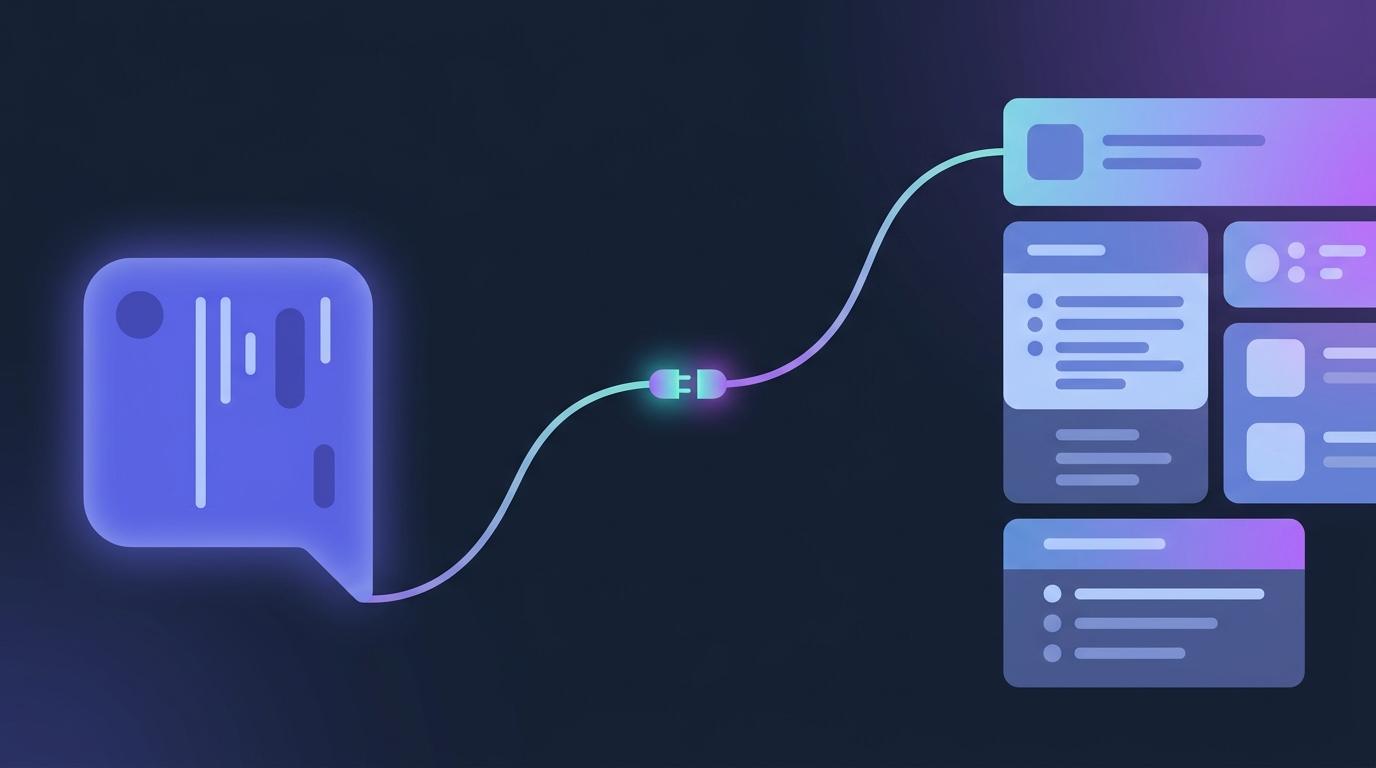
EduGears AI now closes that gap. You connect the assistant you already use directly to EduGears AI, and the things it writes arrive as real course material — a quiz with an answer key, a module with lesson pages, in EduGears AI LMS even a whole course — sitting in your library, waiting for your review.
What connecting your assistant means
Claude, ChatGPT and Microsoft Copilot can each be extended with connectors — a standard way (the Model Context Protocol, MCP) for a chat assistant to use an outside tool. EduGears AI is now such a tool. Once a teacher connects it, their assistant can see which of their courses it may work in, what kinds of content it can create, and the exact formats EduGears AI accepts. Ask it what it can do with EduGears AI and it will tell you, accurately, because the connection itself carries that information.
There are no API keys to request and no developer setup. The connection is made by the teacher, from their own assistant, with their own EduGears AI sign-in — and it acts only as that teacher, in that teacher's courses.
What you can build from a chat
- “Create a 10-question quiz on photosynthesis for my Biology course” — a graded quiz with multiple choice, true/false, short answer and essay questions, with answer keys and explanations, lands in your EduGears AI library for Moodle or Canvas.
- “Build a module on tide calculations with three lessons” — a module with lesson pages, written by your assistant, structured by EduGears AI.
- “What courses do I have?” — your assistant reads your course list and recent work, so follow-up requests land in the right place.
- In EduGears AI LMS, “create a course on celestial navigation with four modules” builds the entire course — structure, modules, lesson pages and quizzes — from one conversation.
The assistant does the writing, on the plan your institution already has. EduGears AI does what a chat window cannot: it stores the material in the right structure, renders the questions properly — mathematics included — delivers them to learners, and sends grades back to the Moodle or Canvas gradebook when you publish a quiz.
Nothing reaches students without you
Everything your assistant creates arrives as draft material. In Moodle and Canvas, content sits in your EduGears AI library until you place it in the course yourself — the same picker you already use. In EduGears AI LMS, anything added to a published course arrives hidden, and becomes visible only when you choose. Publishing is the review step, and it stays yours.
What your assistant can't see
The connection is deliberately narrow. Your assistant can read and create course material you author. It cannot see student work, grades or gradebooks — the consent screen says exactly that before you approve the connection. Connections are personal: each teacher approves their own, can disconnect it at any moment, and administrators can see and disconnect every connected assistant for their organization. Disconnecting stops an assistant immediately; the content it already created stays yours.
Setting it up
- In your assistant, add a custom connector (some assistants call it an app or an MCP server) and give it your EduGears AI server address — it is shown, with a copy button, in Course Settings in Moodle or Canvas, or on your account page in EduGears AI LMS.
- Your assistant opens the EduGears AI sign-in page. In Moodle or Canvas you enter a one-time pairing code from Course Settings; in EduGears AI LMS you simply sign in with your usual account.
- Ask for content. Your assistant will confirm what it created and where it landed.
The whole flow takes about two minutes, and teachers do it themselves — there is nothing for IT to install.
Where this is available today
The connector is rolling out now, switched on per organization while we onboard the first institutions. If you want it on for yours — for the EduGears AI tool in Moodle or Canvas, for EduGears AI LMS, or both — get in touch and we will enable it for your account.
Want your assistant building courses this week?
Ask us to switch it onWhich assistants work with it?
Any assistant that supports custom connectors over the Model Context Protocol. Today that includes Claude (paid plans), ChatGPT (plans with connector support) and Microsoft Copilot Studio agents. The connector is the same standard in each; only the place where you add it differs.
Does my institution need new AI contracts for this?
No. The writing happens inside the assistant your institution already licenses, under the agreement it already has. EduGears AI receives the finished material — not your conversation.
Can the assistant see my students' work or grades?
No. The connection covers course material you author: reading your course list and content, and creating quizzes, modules, lessons and pages. Student submissions, grades and gradebooks are not part of it, and the consent screen states that before you connect.
What happens if I disconnect?
The assistant loses access immediately. Everything it already created stays in your library, exactly like content you made by hand.
Is this the same as bring-your-own-key?
They are complementary. Bring-your-own-key runs EduGears AI's own in-app tools on your institution's AI provider agreement. The connector is the other direction: your chat assistant drives, and EduGears AI stores and delivers what it writes. Many institutions will use both.
Try EduGears AI Free
Setup in 3 minutes via LTI 1.3. No credit card required. All 30 AI tools included on the free tier.
Get Started Free →