Quiz Due Dates in Moodle & Canvas: Windows and Late Work
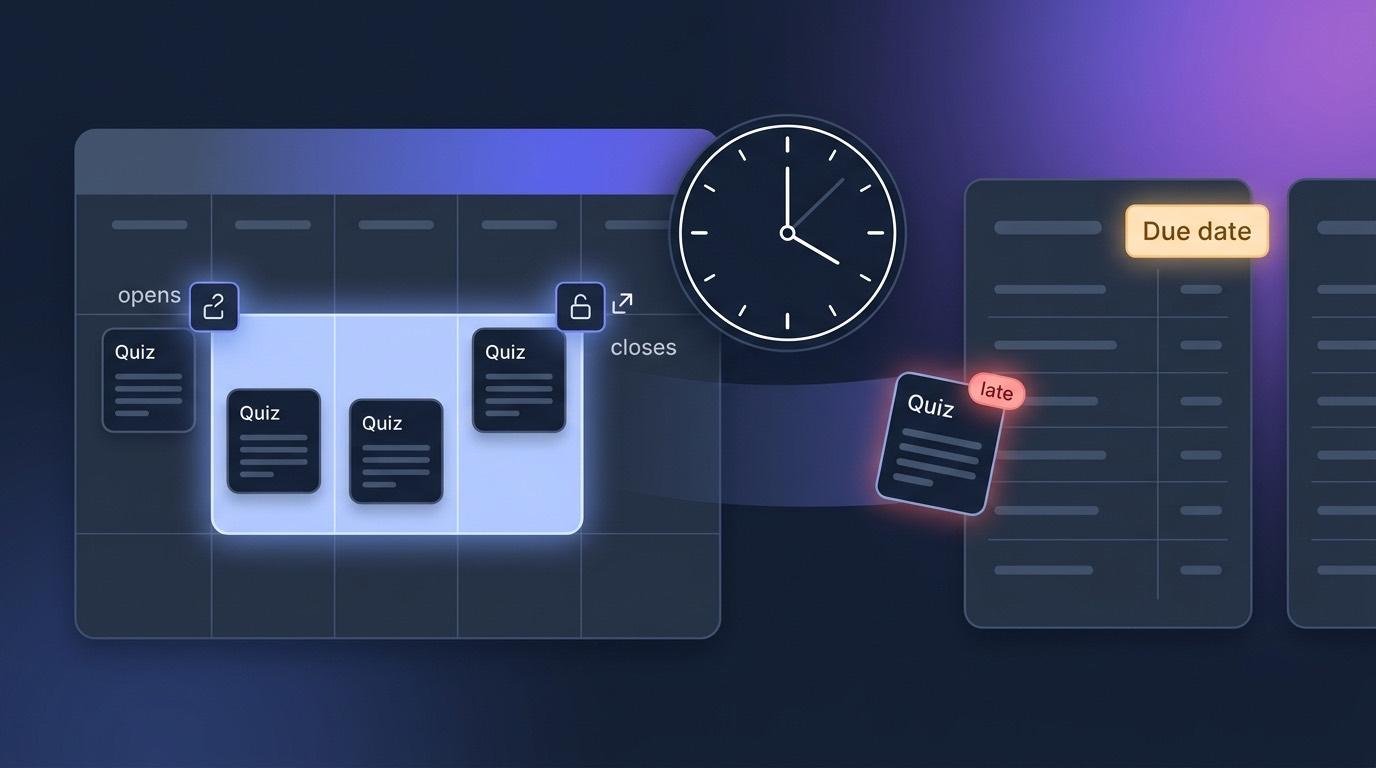
Every teacher who has run a quiz through an external tool knows the routine: unhide it on Monday morning, remember to hide it again on Friday night, and then spend Saturday deciding whether the submission that landed at 00:04 counts. The quiz itself had no opinion about time — so the deadline lived in your calendar, your memory, and eventually your inbox.
Quiz scheduling moves that deadline into the quiz. Any graded quiz in EduGears AI can now carry its own Opens, Due and Closes times: attempts are gated on the window by the server, late submissions are badged for the student and noted for you, and the dates travel onward to the Moodle or Canvas gradebook over LTI AGS.
Why LTI Quizzes Never Had Real Deadlines
LTI quizzes had no deadlines of their own because the dates lived one layer away, in the LMS. Moodle and Canvas have excellent date controls — for their own activities. An external tool's quiz sits outside that: your LMS can decide whether a student may launch the activity, but historically nothing inside the tool knew when the assessment was supposed to open or close. That gap is why external-tool quizzes ended up policed by hand, and why "submitted late" was a judgement call rather than a fact recorded next to the score.
Closing the gap needs three things, not one: a window the tool enforces itself, a late marker that survives the session that produced it, and a way to tell the LMS what the dates are so the gradebook and the calendar agree with the quiz.
How Do You Set a Due Date on an LTI Quiz?
You set it in the quiz editor, on the quiz itself — no LMS admin rights needed. In EduGears AI, the settings panel has an Availability section with three optional date-and-time fields. All three are blank by default, and a blank field is simply no restriction — an unscheduled quiz behaves exactly as it always did. You type in your own time zone, which is named beside the heading, and each box has a clear button when you change your mind.
| Field | What it does | What it never does |
|---|---|---|
| Opens | Students can't start an attempt before this moment. At exactly this time, the quiz is open. | Doesn't hide the activity in your LMS — that's your LMS's own access control. |
| Due | Anything submitted after it is marked late, for the student and in the gradebook comment. | Never blocks anyone. A past due date still lets a student start and submit. |
| Closes | No new attempt can be started after it. At exactly this time, a student may still begin. | Doesn't cut off an attempt already under way — that one always finishes. |
The boundaries are deliberately inclusive. A deadline typed as 23:59 means 23:59 still counts, because that is what it means to everyone in the room. And the order has to make sense — Opens on or before Due, Due on or before Closes — or the save is refused with a message that says so, rather than quietly walking a cohort into a window it can never enter.
Students see the same three lines on the start screen of the quiz, in their own language and time zone. Once the quiz is open, the Opens row drops away; once the deadline has passed, the due line changes to say that later submissions are marked late. Outside the window there is no Start button at all — just the notice saying when the quiz opens, or when it closed.
Enforcement is server-side, not a hidden button. A student who starts while the quiz is open keeps their attempt and their timer even if the window closes underneath them — including on a timed quiz, where the countdown they began with is the one that applies.
How Is Late Work Marked and Shown?
Late work is recorded, never refused: a submission after the due date is badged for the student and noted in the gradebook comment, with no marks deducted automatically. A due date that blocks submissions doesn't measure lateness, it prevents work. So Due never blocks: it records. A submission after the deadline is marked late on the attempt itself, which means the flag is still there tomorrow, next term, and on the review screen the student comes back to — not just in the moment it happened.
- The student sees it — a late badge on the result they just submitted, and on the review screen afterwards.
- You see it in the LMS — the grade passback comment carries a "Submitted late" line under the score, so it survives wherever your gradebook truncates comments.
- Nothing changes automatically — no auto-deduction, no rejected work. The penalty policy stays yours; the tool supplies the fact.
- Your own trial runs stay clean — instructor attempts and previews (including Canvas Student View) are exempt from both the gate and the late label.
That last point matters more than it sounds. A teacher checking an activity the week after the deadline shouldn't stamp "late" on their own preview row — and shouldn't be locked out of their own quiz to prove the gate works.
Do the Dates Reach the Moodle or Canvas Gradebook?
Yes — EduGears AI publishes the window and due date to your LMS over LTI 1.3 Assignment and Grade Services (AGS), on the two occasions where that is safe to do. A deadline only the tool knows about is half a deadline:
- When you attach the quiz — adding it through your LMS's content picker (deep linking) returns the availability window and the due date alongside the gradebook line item, so a platform that reads them can mirror the window in its own calendar and dates.
- When we create the gradebook column — a score posted to a column EduGears AI created writes the window's start and end onto that column.
What it deliberately does not do is rewrite dates on a column your LMS already owns. Those dates belong to the platform and to whoever set them there — a grade post is no place to move somebody else's deadline. An unscheduled quiz sends exactly what it always sent, so nothing changes for quizzes you never scheduled.
Can LTI Quizzes Have Due Dates in Moodle?
Yes. A quiz added to Moodle through EduGears AI carries its own Opens, Due and Closes times, and Moodle receives them when the activity is placed and when the gradebook column is created. Add the quiz to a Moodle course the usual way, through the activity chooser and the content picker. The quiz's window and due date ride along with the placement, and when the first score posts and Moodle's gradebook column is created for it, the dates travel with the column too. Grades themselves keep flowing over LTI Assignment and Grade Services exactly as described in our complete guide to AI for Moodle.
Moodle's own restrictions still come first. If you've used Restrict access on the activity, a student blocked there never reaches the quiz at all — the tool's window is a second, finer gate inside an activity the student was already allowed to open. And if Moodle sends its own dates for the activity, those replace the quiz's three settings as a set, so you never end up with half a Moodle window and half a quiz window in force at once.
How Does Quiz Scheduling Work in Canvas?
In Canvas the same window applies and is enforced the same way, with one extra benefit at attach time: a graded quiz now hands Canvas the assignment's real point value when you add it from the content picker, so the column is created with the right points instead of defaulting to zero and needing a manual fix. See the Canvas integration page for the rest of what changes on that platform, including Blueprint sync.
Canvas Student View is treated as a preview: use it to walk the quiz as a student without tripping the gate or stamping a late flag on your own row.
Can I Set a Grade Category for the Gradebook Column?
Yes — the same settings panel now carries a Grade category (sent to gradebook) picker — Homework, Assessment, Midterm, Final exam or Project, or None / use LMS default, which keeps today's behaviour. LTI has no dedicated category field, so the category rides the standard AGS line item as a tag on the gradebook column we create.
Be realistic about what that buys you per platform: with the EduGears AI LMS the category files the column into the matching weighted bucket. Moodle and Canvas receive the same standard tag and act on it where they support it; where they don't, the grade is recorded exactly as before. And if your LMS sends its own category for the activity, that one wins over the setting here.
Put a real deadline on your next quiz — free, no credit card, about three minutes to install.
Get Started Free →Rules Worth Knowing Before Your First Deadline
Six behaviours decide what a scheduled quiz does in practice — they are the ones teachers otherwise learn the hard way, in the week of a deadline.
- Blank means no restriction. You can set one field, two, or all three — a quiz with only a due date is a perfectly good quiz that nags but never blocks.
- Boundaries are inclusive. Open at exactly Opens; a student may still begin at exactly Closes; a submission at exactly Due is on time.
- An attempt in progress always finishes. Closing time never snatches a paper out of a student's hands.
- Your LMS's dates replace all three, as a set. Never merged field by field — there is no state where half an LMS window is in force.
- Your LMS's own access rules act first. Moodle's Restrict access and Canvas's assignment dates gate the launch before the tool is involved at all.
- Teachers are never gated. You can open your own quiz any time, and your attempts are never labelled late.
Getting Started Free
EduGears AI installs once at the LMS admin level over LTI 1.3 — about three minutes, no intrusive plugins. Scheduling is part of the quiz editor, so it's included on every plan alongside all 26 AI tools: question generation, AI grading with passback, the AI tutor, practice sets and the rest of the toolkit. Follow the setup guide, or read how the integration works in Moodle and Canvas.
Bringing an existing course with you? Imported Moodle and Canvas material lands as editable activities you can schedule the same way — see course portability.
Frequently Asked Questions
What happens if a quiz closes while a student is still working?
They finish. The window is checked when an attempt starts, not while it runs, so a student who began while the quiz was open keeps their attempt — and on a timed quiz, the countdown they started with is the one that applies.
Does a due date stop students from submitting?
No. A due date never blocks anyone. Work submitted after it is marked late: the student sees a late badge on their result and review screen, and the grade passback comment carries a "Submitted late" line under the score. No marks are deducted automatically — the penalty policy stays yours.
Which time zone do the dates use?
You enter them in your own time zone, which is named beside the Availability heading in the quiz editor. Students see the same window rendered in their own locale and time zone on the quiz start screen, so nobody has to do the arithmetic.
What if Moodle or Canvas already sets dates for the activity?
The dates your LMS sends replace all three settings as a set — never merged field by field. Your LMS's own access rules, such as Moodle's Restrict access, apply earlier still: they gate the launch before the quiz is reached at all.
Do the dates show up in my LMS gradebook?
When EduGears AI creates the gradebook column, the availability window and due date are written onto it, and attaching a quiz through the content picker passes the same dates to the platform. We never rewrite dates on a column your LMS already owns. Platforms that ignore the dates behave exactly as before.
Can I still schedule a quiz that allows several attempts?
Yes. Scheduling sits alongside the existing retake settings — attempts allowed, score policy and time limit. Every new attempt has to start inside the window; the score policy you chose still decides which attempt reaches the gradebook.
Is quiz scheduling included on the free plan?
Yes. Scheduling and grade categories are part of the quiz editor, included on every plan alongside all 26 AI tools. Setup is via LTI 1.3 in about three minutes with no intrusive plugins.
Try EduGears AI Free
Setup in 3 minutes via LTI 1.3. No credit card required. All 26 AI tools included on the free tier.
Get Started Free →