Setup Guide
Get EduGears AI running in your LMS in under 3 minutes.
Option 1: Install the Moodle Plugin (Recommended)
Watch the Plugin Setup Video
Prerequisites
- Moodle 4.0 or later (Moodle 4.5+ recommended) — self-hosted, or Moodle Cloud Premium with plugin install enabled
- Moodle administrator access (or universal LTI registration URL — see 'All LMS' tab — for Moodle Cloud Starter)
Behind a firewall or on a private network? One-click registration needs a Moodle our servers can reach, and so does the plugin-free URL method. If yours is on a private network, behind a WAF or on localhost, the plugin gives you a registration code instead: paste it together with your site's public JWKS document at lti-api.edugears.ai/portal/register-manual. Moodle Cloud Premium works with the one-click flow.
Install the Plugin
Download the EduGears AI LTI plugin from the Moodle Plugins directory and install it via Site Administration → Plugins → Install plugins. Click "Install plugin from the ZIP file" and follow the prompts.
Download from Moodle Plugins DirectoryRegister EduGears AI
After installation, click the "Register EduGears AI" button in the install notification — or go to Site Administration → Plugins → Local plugins → EduGears AI LTI and click the Register button. The tool is created locally in Moodle and your browser sends the registration to EduGears AI, which verifies your site's public JWKS URL. A claim code is displayed on success. If your Moodle is not reachable from the internet, the plugin gives you a registration code to complete manually instead.
Add to a Course
Open any course and turn on Edit mode. Click "+ Add an activity or resource" in any section, then select EduGears AI from the activity chooser.
Choose an AI Tool & Launch
A content picker will open showing all available AI tools — Question Generator, Slides Generator, AI Grading, AI Tutor, and more. Click the tool you want, then click Add to Course. Students can now click the activity to use the AI tool — no separate login required.
Option 2: Register with the LTI URL
Prefer not to install a plugin? Register EduGears AI directly using the universal LTI registration URL — the same steps as the All LMS tab. Your Moodle site must be reachable from the internet.
Watch the LTI URL Setup Video (Moodle example)
Prerequisites
- Moodle 4.0+, Canvas, Blackboard, Brightspace, or any LTI 1.3 compatible LMS
- LMS administrator access
- A publicly accessible LMS URL (not localhost)
Important: Your LMS must be reachable from the internet for dynamic registration to complete — with the Moodle plugin as well as without it. If your Moodle is behind a firewall, on an intranet hostname or on a private network, register manually instead: paste the plugin's registration code together with your site's public JWKS document at lti-api.edugears.ai/portal/register-manual.
Open External Tools Settings
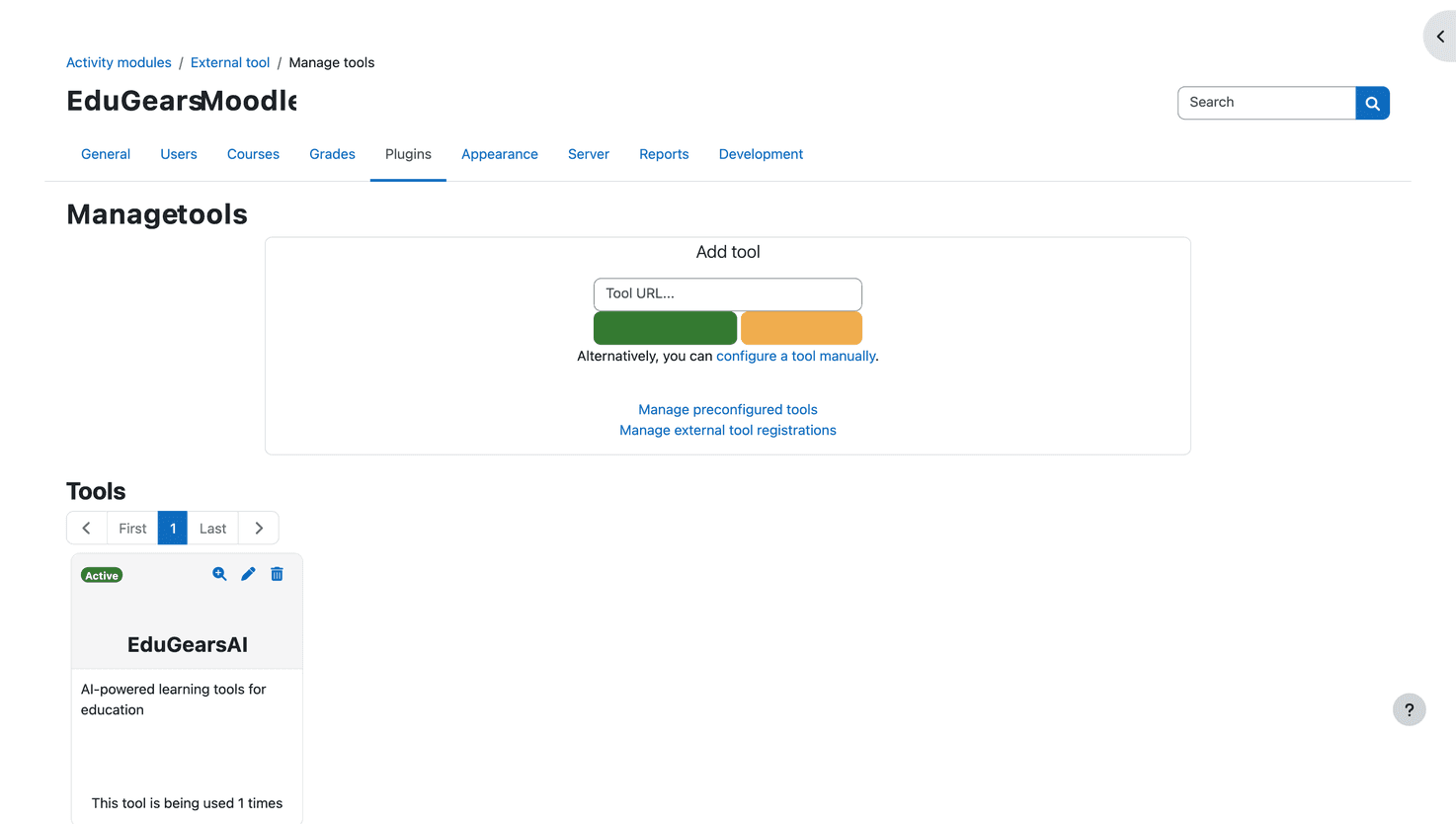
Log in to your LMS as an administrator and navigate to the external tools or LTI settings. In Moodle: Site Administration → Plugins → Activity modules → External tool → Manage tools.
Enter the Registration URL
Paste the EduGears AI registration URL into the Tool URL field and start the LTI Advantage registration. In Moodle, click "Add LTI Advantage".
Registration URL
https://lti-api.edugears.ai/lti/register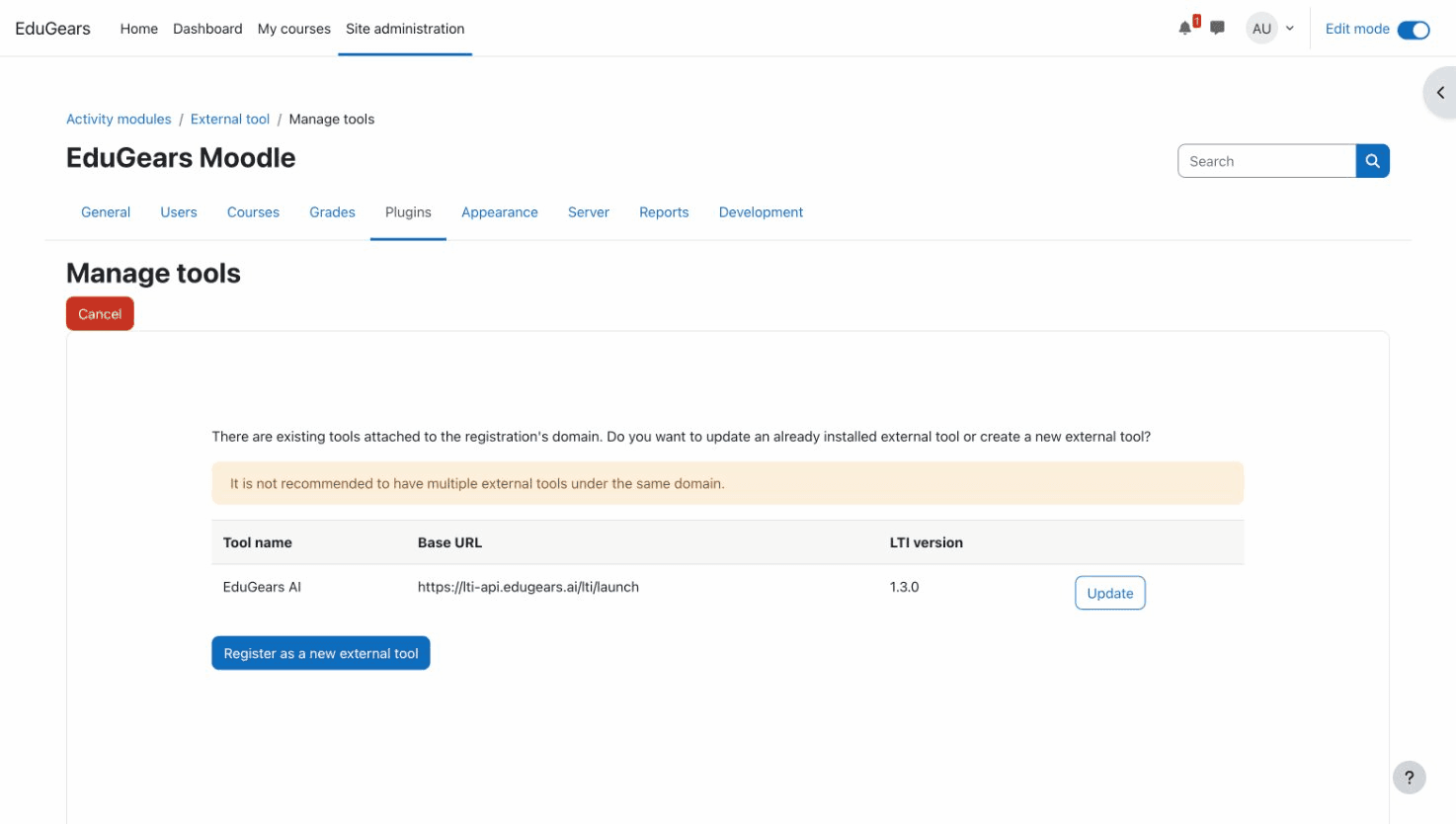
Activate the Tool
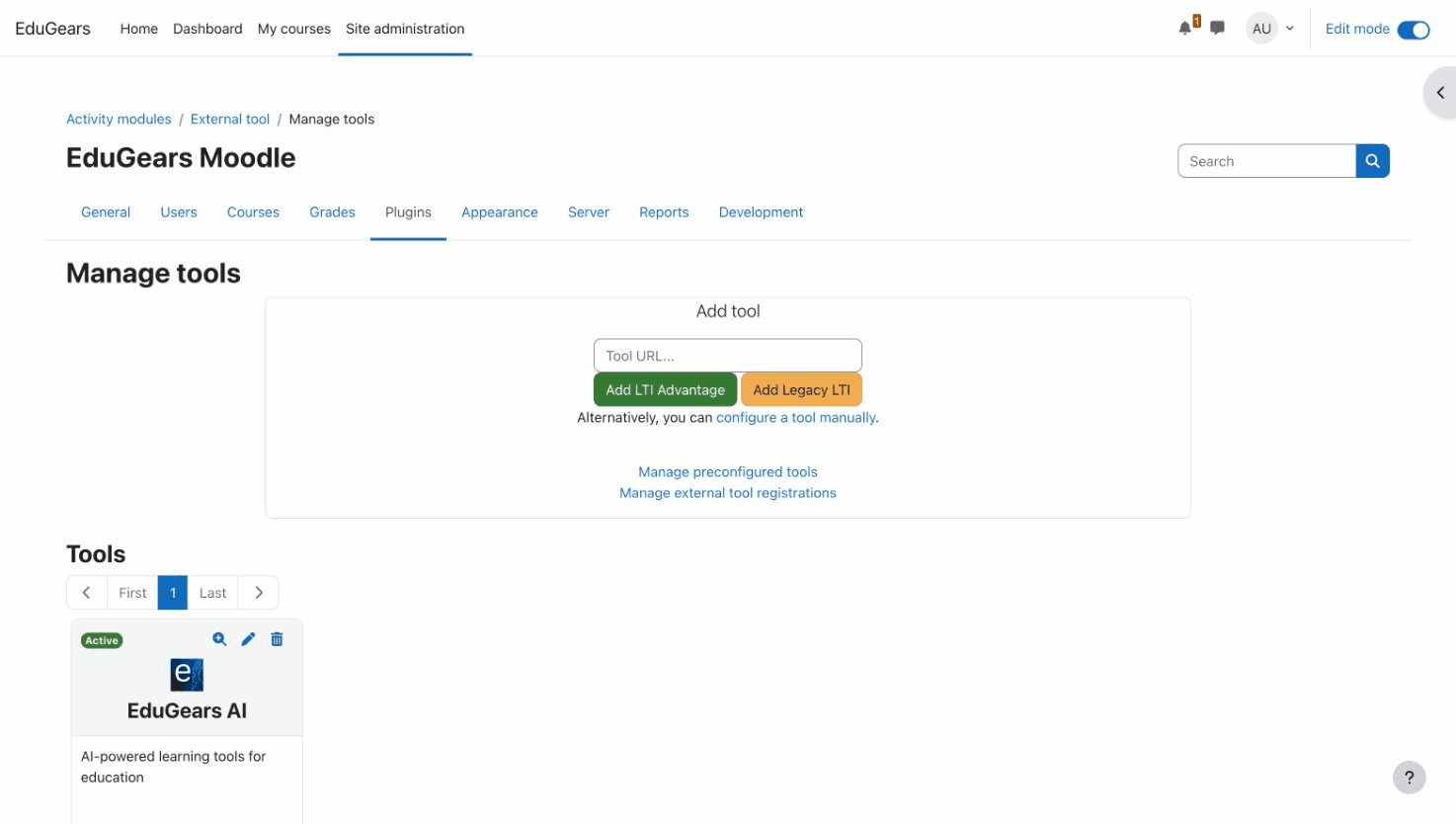
After registration completes, EduGears AI will appear in the tools list. Activate it to make it available. In Moodle, click the Activate button — the tool card should show a green Active badge.
Enable in Activity Chooser
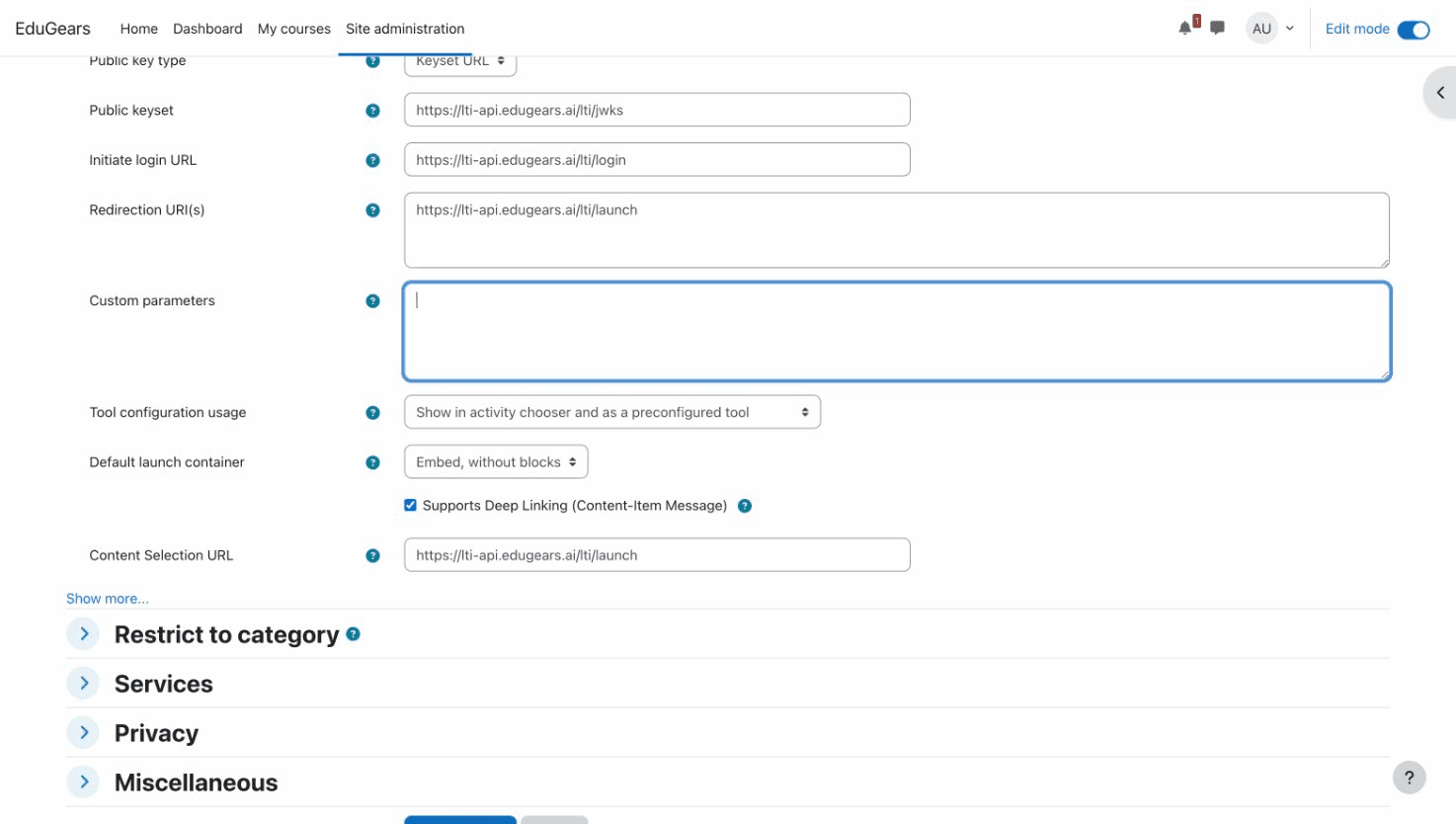
In Moodle, click the edit (pencil) icon on the EduGears AI tool card. Scroll down to "Tool configuration usage" and set it to "Show in activity chooser and as a preconfigured tool". Click Save changes. Other LMS platforms may have similar visibility settings.
Add to a Course
Open any course and turn on editing. Add EduGears AI as an activity. In Moodle, click "+ Add an activity or resource" and select EduGears AI from the activity chooser.
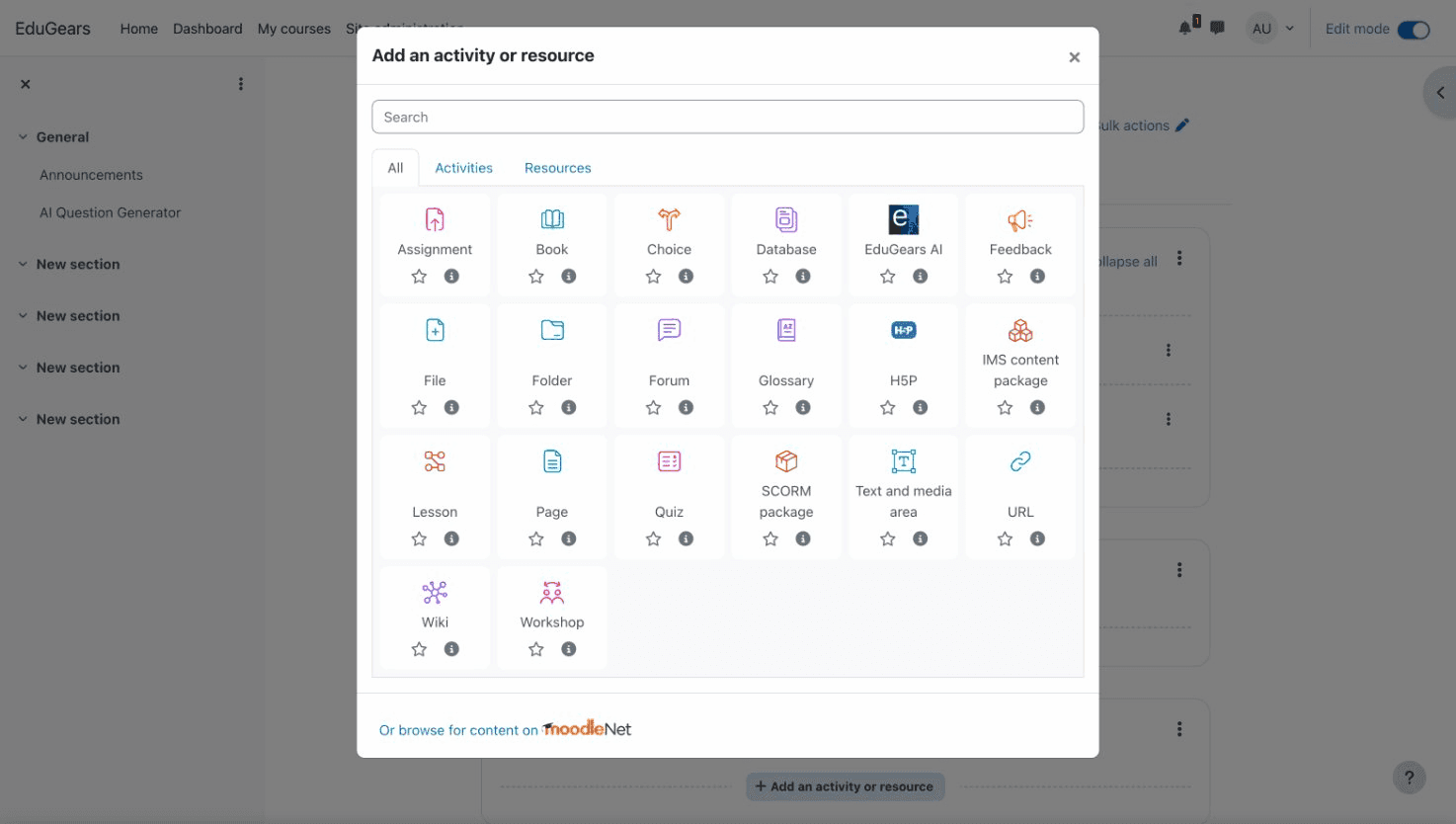
Choose an AI Tool
A content picker will open showing all available AI tools — Question Generator, Slides Generator, AI Grading, AI Tutor, and more. Click the tool you want, then click Add to Course.
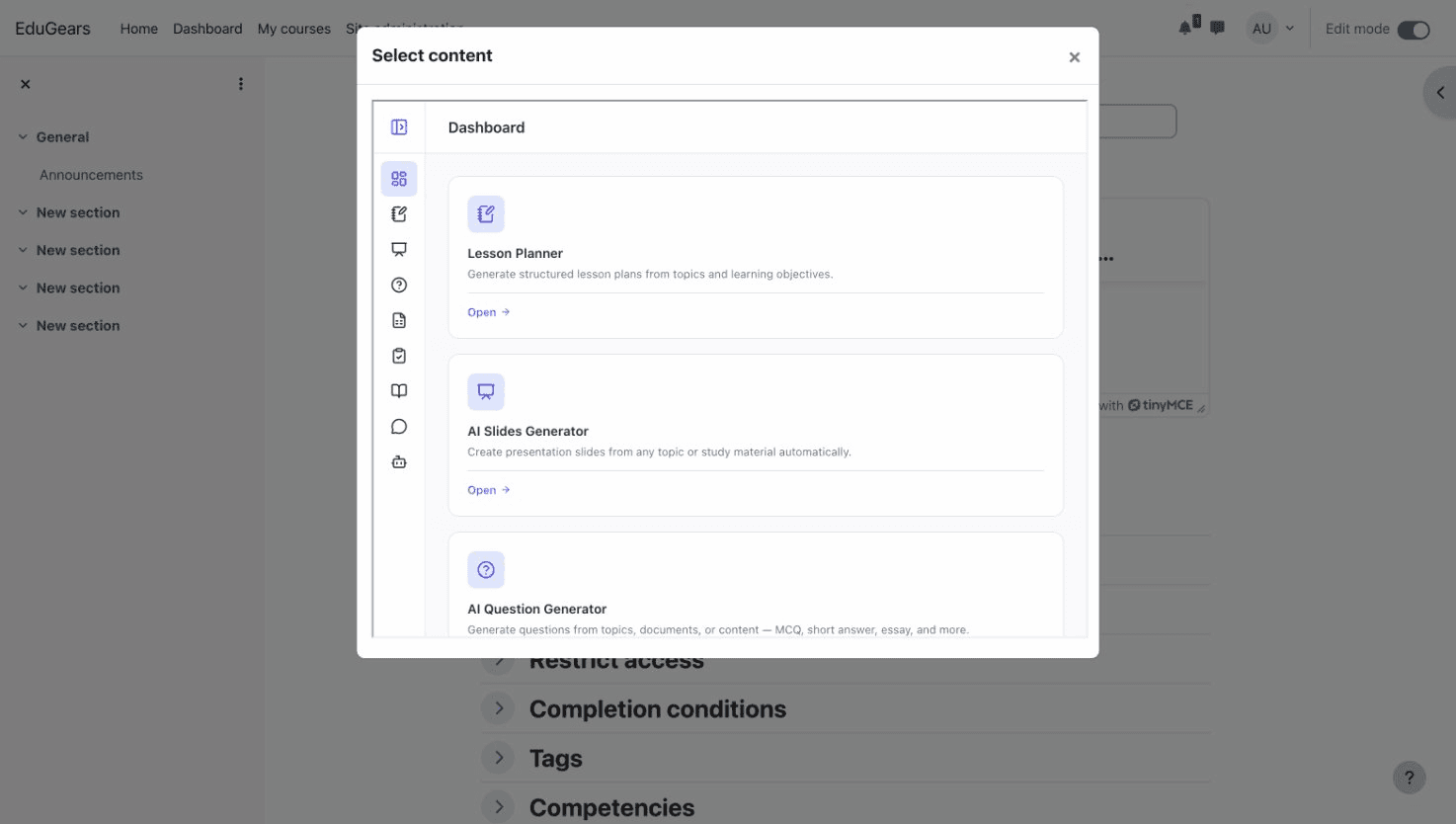
Save and Launch
Save the activity and launch immediately. Students can now click the activity to use the AI tool — no separate login required. Authentication happens automatically through your LMS.
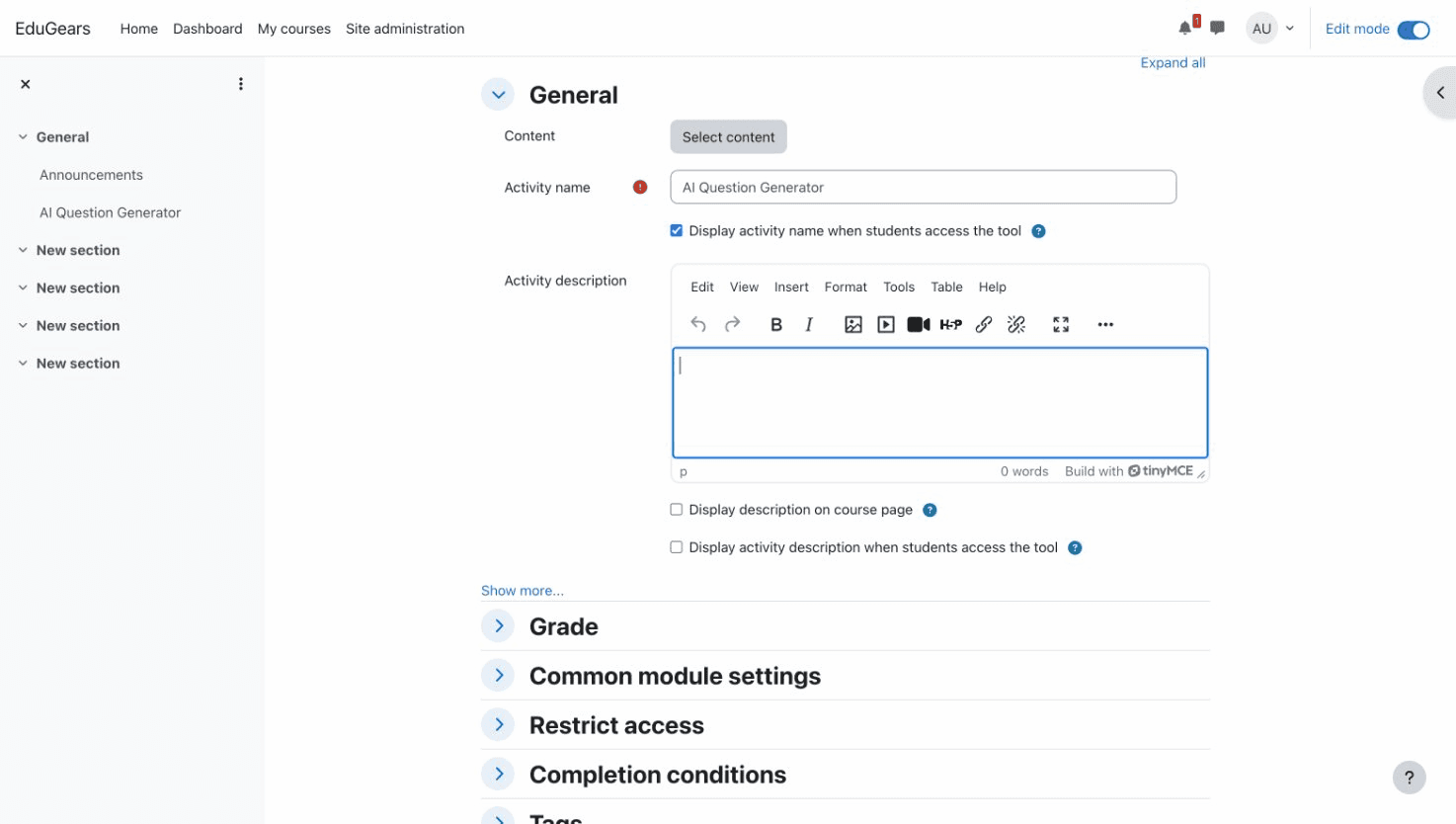
Available AI Tools
| Tool | Description |
|---|---|
| AI Course Modules | Build entire courses from a syllabus with auto-generated lessons, slides, quizzes, and more |
| AI Question Generator | Generate questions from topics for quizzes and assessments |
| Question Banks | Reusable question pools — save AI-generated questions, author manually, or import existing Canvas banks as QTI |
| Practice Sets | Self-paced student practice from banks, generators, course modules, history, or manual entry — includes flashcard mode |
| Quizzes | Graded quizzes and finals with question groups (random draw per student) and Canvas grade passback |
| Rubrics | Custom criteria + performance levels; attach to quizzes or essays for AI grading in one pass with per-criterion breakdown |
| AI Slides Generator | Create presentation slides from any topic |
| AI Grading | AI-assisted grading with detailed feedback and grade passback |
| AI Tutor | Interactive AI tutor for student Q&A and guided learning |
| AI Study Guide | Generate study guides and revision material |
| AI Worksheet Generator | Generate practice worksheets and activities |
| AI Lesson Planner | Generate lesson plans from topics and learning objectives |
| AI Assistant | AI teaching assistant for instructors |
| Rich Text Editor with AI Images | WYSIWYG editor across every AI tool — insert AI-generated images inline, plus tables, LaTeX math, code, links, and YouTube embeds |
| Curriculum Intelligence | Upload course materials and every AI tool generates content aligned to your actual curriculum |
Frequently Asked Questions
Which setup method should I use?
Use the Moodle tab if you're on Moodle — the plugin method is easier, because it creates the external tool for you in one click. Use the All LMS tab for Canvas, Blackboard, Brightspace, or if you prefer not to install a plugin on Moodle. Either way your Moodle has to be reachable from the internet; if it isn't, use manual registration.
Do students need an EduGears AI account?
No. Students are automatically authenticated through your LMS's LTI integration. They simply click the activity in their course.
Can I add multiple AI tools to the same course?
Yes! Add as many tools as you'd like. Each tool appears as a separate activity.
Which LMS platforms are supported?
EduGears AI works with any LMS that supports LTI 1.3, including Moodle (4.0+), Canvas, Blackboard, and Brightspace. The Moodle plugin requires Moodle 4.0+.
What is Bring Your Own Key (BYOK)?
BYOK lets you connect your own API key from supported AI providers (OpenAI, Anthropic, Google, DeepSeek, Sarvam AI) so advanced AI runs on your own provider account at provider cost instead of drawing AI credits. Keys are encrypted and stored securely per institution. Alternatively, you can use EduGears AI's default AI provider.
Is the data secure?
Yes. EduGears AI uses the LTI 1.3 Advantage standard with OAuth 2.0 and signed JWTs. All communication is cryptographically secured. No passwords are shared.
Can I restrict which AI tools are available?
Yes. Contact us at support@edugears.ai to customize which tools appear in the content picker for your institution.
The tool doesn't appear in the activity chooser?
If you used the URL method on Moodle, make sure you completed the "Enable in Activity Chooser" step — edit the tool on the Manage tools page and set "Tool configuration usage" to "Show in activity chooser and as a preconfigured tool". The Plugin method does this automatically.
I get "Registration Failed" with the URL method?
This usually means your LMS cannot be reached from the internet (firewall, localhost, private network). Switching to the Moodle plugin will not fix it — the plugin registration is verified server-to-server too. The fix is manual registration: the plugin gives you a registration code, and you paste it together with your site's public JWKS document at lti-api.edugears.ai/portal/register-manual.