AI Page Generator for Your LMS: From Prompt to Published Lesson Page
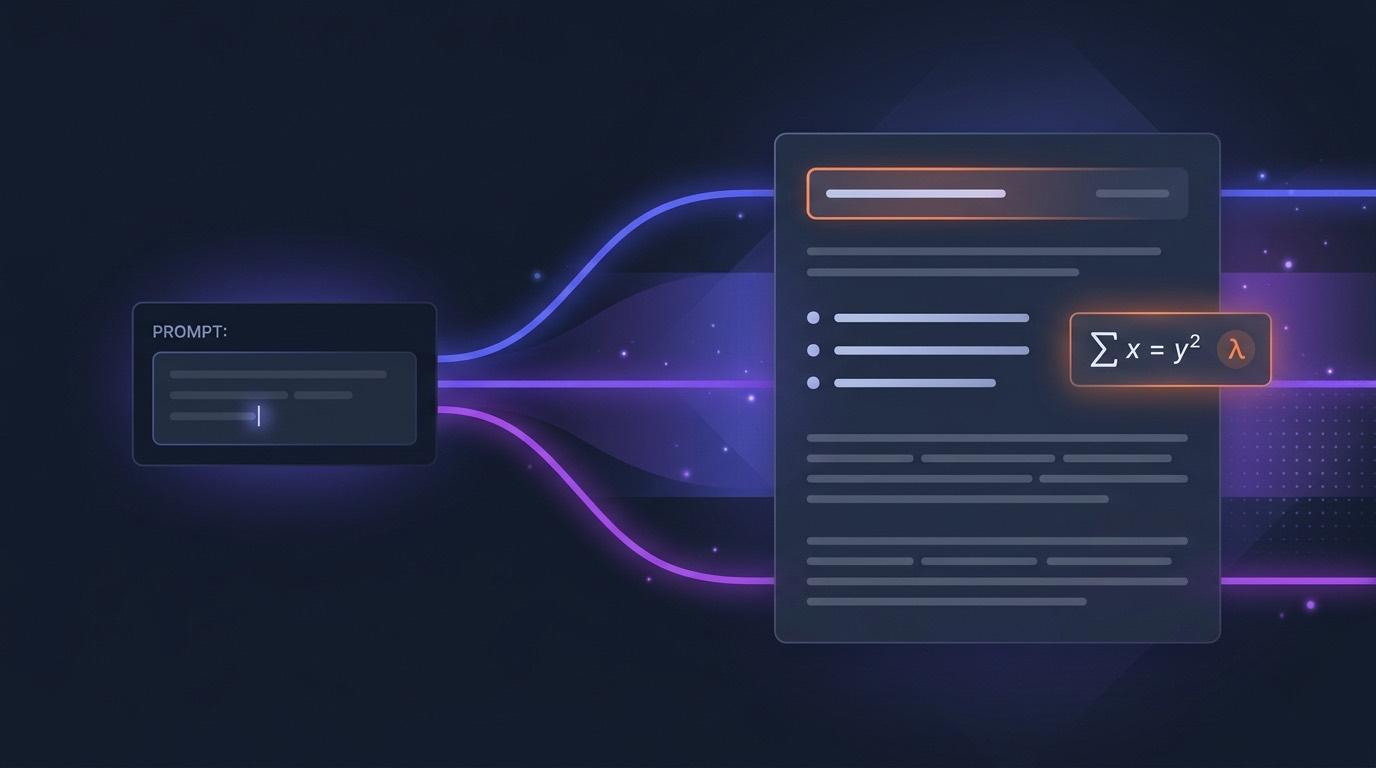
Most AI content tools push you toward one format. You ask for a lesson and you get a slide deck — even when what your students actually need is a page they can read at their own pace, scroll back through, and revisit before a quiz. The AI Page Generator in EduGears AI fills that gap: describe the page you want and it writes complete, formatted content that lands directly in a rich editor inside your LMS.
No copy-paste from a chatbot, no reformatting, no separate app. The page is created, edited, shared, and exported entirely within Moodle, Canvas, Blackboard, or Brightspace through a single LTI 1.3 integration.
What an AI Page Generator Actually Does
An AI page generator turns a short description into a finished web page of instructional content — headings, paragraphs, lists, tables, and even math and chemistry notation — formatted and ready to teach. Think of it as the difference between asking a chatbot for "notes on the carbon cycle" and getting back a structured, classroom-ready reading page with sections, key takeaways, and a worked example.
In EduGears AI, the generated page opens in a full WYSIWYG editor. You're never stuck with the first draft: tweak a heading, fix a definition, reorder a section, or drop in your own example, then save. Saved pages live in your history so you can re-open and re-edit them any time.
A page generator isn't a replacement for slides or worksheets — it's the missing third format. Slides present, worksheets practice, and pages explain.
Why a Page — and Not Slides or a Worksheet
EduGears AI already generates slides, study guides, and worksheets. So when is a page the right call? Pages shine whenever the goal is reading and reference rather than presenting or drilling:
- Pre-reading before class — a self-contained explainer students work through before a live session.
- Concept explainers — a focused page on one idea (osmosis, the causes of WWI, the quadratic formula) students can re-read on demand.
- Course or unit overviews — a landing page that frames what's coming and links the pieces together.
- Reference material — definitions, formulas, and worked examples students return to throughout a unit.
Because the output is a real, formatted page rather than a slide deck or a printable, students read it the way they read anything else online — scrolling, scanning headings, and jumping back to the part they need.
From Prompt to Published in Four Steps
- Describe the page. In one box, say what it should cover, who it's for, and how deep to go — for example: "A reading page on the carbon cycle for grade 9 biology, with a short intro, the four main stages with definitions, a diagram caption, and three key takeaways."
- Generate. The AI returns a complete, formatted page — headings, paragraphs, lists, and any math or chemistry notation rendered properly.
- Edit in the WYSIWYG editor. Refine anything inline: bold a term, add a bullet, insert your own example, adjust the reading level. What you see is what your students will see.
- Save and share. The page is stored in your history, ready to share read-only with students or export to PDF.
The whole loop takes a couple of minutes, and every step happens inside your LMS — there's no second login and nothing to paste back and forth.
Grounding the Page in Your Own Materials
Generic AI output is the most common complaint teachers have, and the fix is grounding. When you generate a page you can optionally upload source material — your existing notes, a chapter PDF, a syllabus — and the AI builds the page from your content rather than its general knowledge.
That keeps terminology, examples, and emphasis aligned with how you actually teach the topic. Pair it with Curriculum Intelligence — which lets every EduGears AI tool draw on your uploaded course materials automatically — and generated pages start to sound like they came from your own desk.
Math and chemistry are first-class: LaTeX-style equations and chemical formulas render correctly on the page, so a chemistry explainer or a physics worked example looks right the moment it's generated.
Sharing with Students and Exporting to PDF
A page is only useful if students can get to it. EduGears AI gives you two paths:
- Share read-only with students. Toggle sharing on and students see the page in a clean, distraction-free view inside the LMS — no editing, just reading.
- Export to PDF. Download the page as a PDF for offline reading, printing, or handing out — formatting, math, and chemistry intact.
And because every page can be re-opened from your history, updating it next term is a quick edit rather than a rebuild.
Where it fits with the rest of the toolkit
The Page Generator is one of 26 AI tools in EduGears AI, all behind the same LTI integration. Generate a concept page, attach a quick quiz from the question generator, and bundle the lot into a self-paced unit students move through in the module player. Every tool shares the same content and the same install.
Generate your first lesson page free — no plugins, no credit card.
Get Started Free →Getting Started Free
EduGears AI installs once at the LMS admin level via LTI 1.3 — setup takes about three minutes and needs no plugins. Every plan, including the free tier, unlocks all 26 AI tools, so the Page Generator is available to every teacher and student from day one. See the 3-minute setup guide or compare plans and pricing.
Frequently Asked Questions
How is an AI-generated page different from pasting from ChatGPT?
A chatbot gives you raw text you then have to reformat, host somewhere, and link to. The EduGears AI Page Generator produces a formatted page directly inside your LMS, opens it in a WYSIWYG editor for edits, and handles sharing and PDF export — no copy-paste and no separate tool.
Can I edit the page after it's generated?
Yes. Every generated page lands in a rich text editor where you can change headings, text, lists, and examples before saving. Saved pages stay in your history and can be re-edited any time.
Does it support math and chemistry?
Yes — equations and chemical notation render correctly on the page and in the PDF export, which makes it well suited to STEM explainers.
Which LMSs does it work with?
Moodle, Canvas, Blackboard, and Brightspace — anywhere that supports LTI 1.3. The page generator, and all 26 tools, install once at the admin level with no per-teacher setup.
Is it really free?
Yes. The free plan includes all 26 AI tools and 200 AI credits to evaluate them, and you can bring your own API key (BYOK) instead. No credit card to start. Paid plans include text-based course creation — page generation among it — with no credit limits, subject to fair use; AI-generated images draw AI credits on every plan.
Try EduGears AI Free
Setup in 3 minutes via LTI 1.3. No credit card required. All 26 AI tools included on the free tier.
Get Started Free →