From your material to the gradebook

AI grading and assessment for Moodle, Canvas and more

Follow one assessment from start to finish. Build it from your own material, give every student a fair paper, let AI mark against your rubric, and see the grades land in the gradebook you already use.

Quiz results
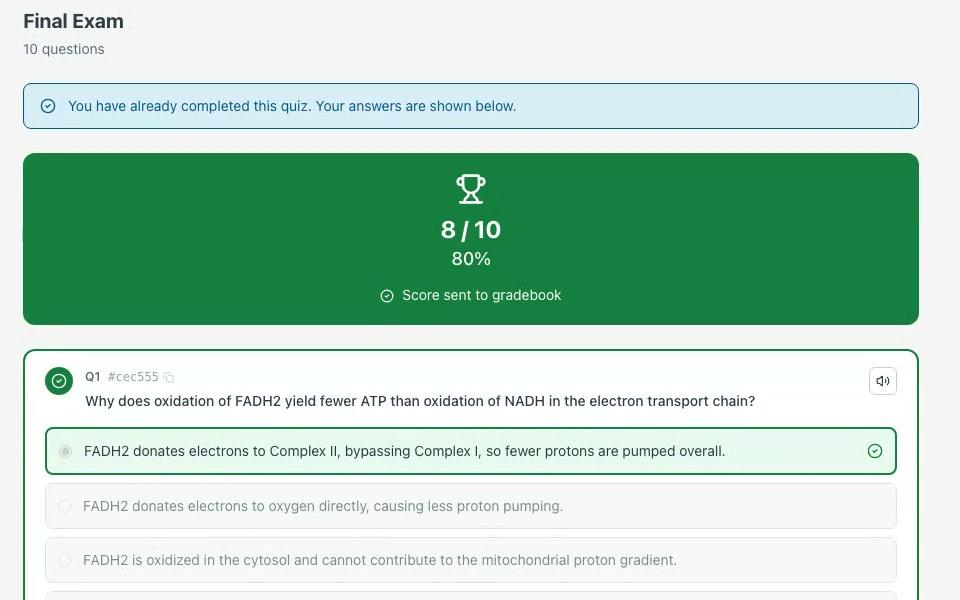
Submitted quiz: 8/10, 80%, "Score sent to gradebook", and the first question marked correct with its explanation
1Before the quiz

Start from your own material

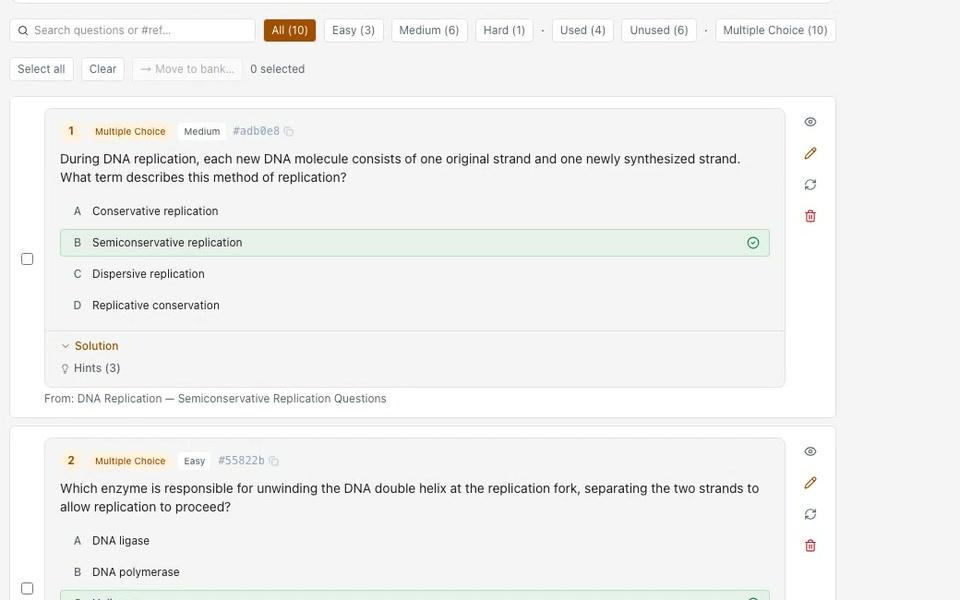
Point the AI Question Generator at a topic, your notes, an uploaded document or a captioned YouTube video. It writes the questions. You edit them, keep the good ones and save them to a bank you can reuse.

  • AI Question Generator: ten question types, easy to hard, up to 50 questions in a set
  • Curriculum Intelligence: questions grounded in the course materials you upload, with a Course Materials Used panel
  • Question Banks: import Moodle XML, Canvas QTI or CSV, and push an edit to every quiz that uses the question
AI Question Generator
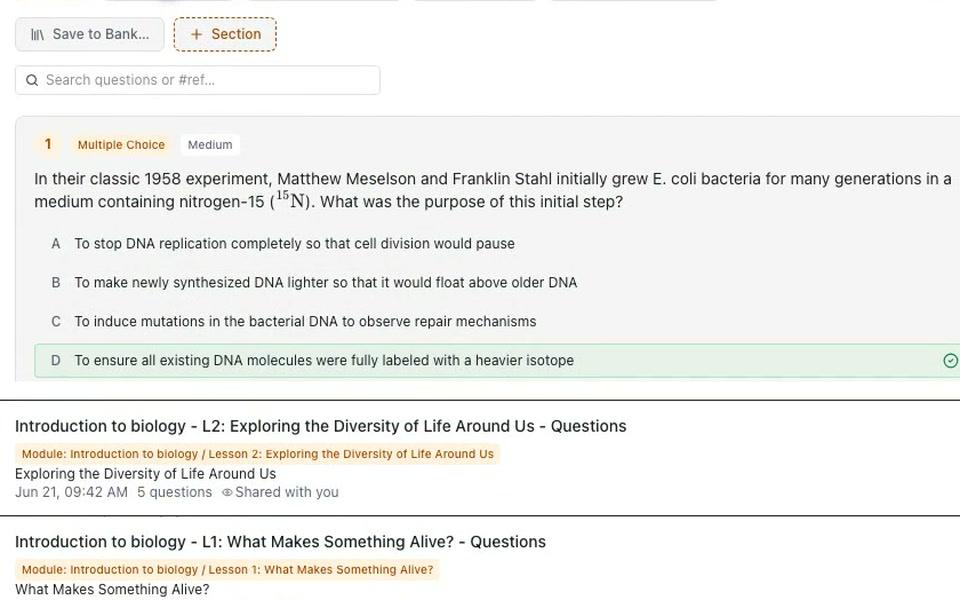
AI Question Generator result: a medium multiple-choice biology question with the correct option marked, above question sets saved for each lesson
2When it opens

Give every student a fair paper

Decide when the quiz opens, when it is due and when it closes. Draw questions at random from a bank so students sit different questions, and put a shared passage above the questions that use it.

  • Open, due and close dates: no start before it opens or after it closes, and late work is labelled, never blocked
  • Question Group (random): random question draws per student, made from a bank as each attempt starts
  • Section panels: one case study or passage above a run of questions
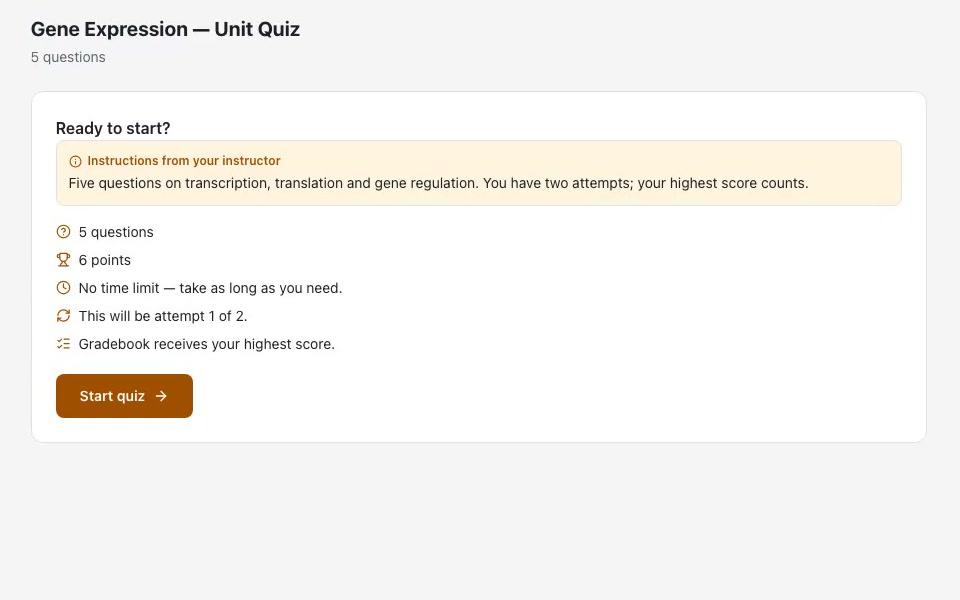
Quiz
Student's start card for a graded quiz: the instructor's instructions, 5 questions, 6 points, no time limit, attempt 1 of 2, and the gradebook keeps the highest score
3During the attempt

A calmer quiz for your students

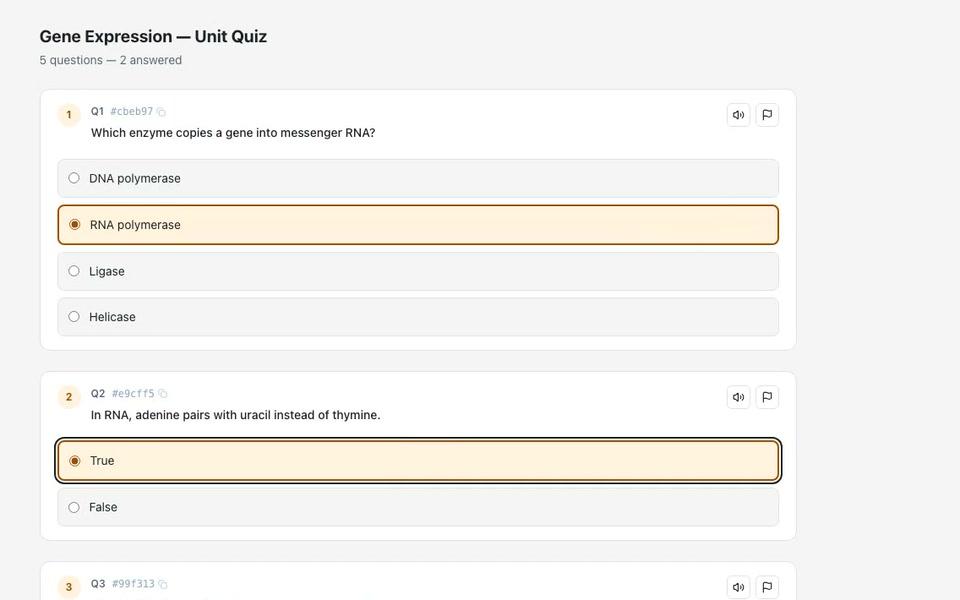
Students open the quiz from your course with the login they already have. They see what they have answered, flag a question to come back to, and can have a question read aloud. Answers are hidden while students work and shown on the results screen after they submit.

  • A Questions panel shows answered, unanswered and flagged questions; select a number to jump to it
  • Read aloud on every question, in the language students use the app in
  • Each attempt builds on the last (your choice): a retake keeps the right answers and blanks the ones to fix
Quiz
A quiz mid-attempt: "5 questions — 2 answered", answers selected, and read-aloud and flag buttons on every question
4After they submit

Mark a stack of work against your rubric

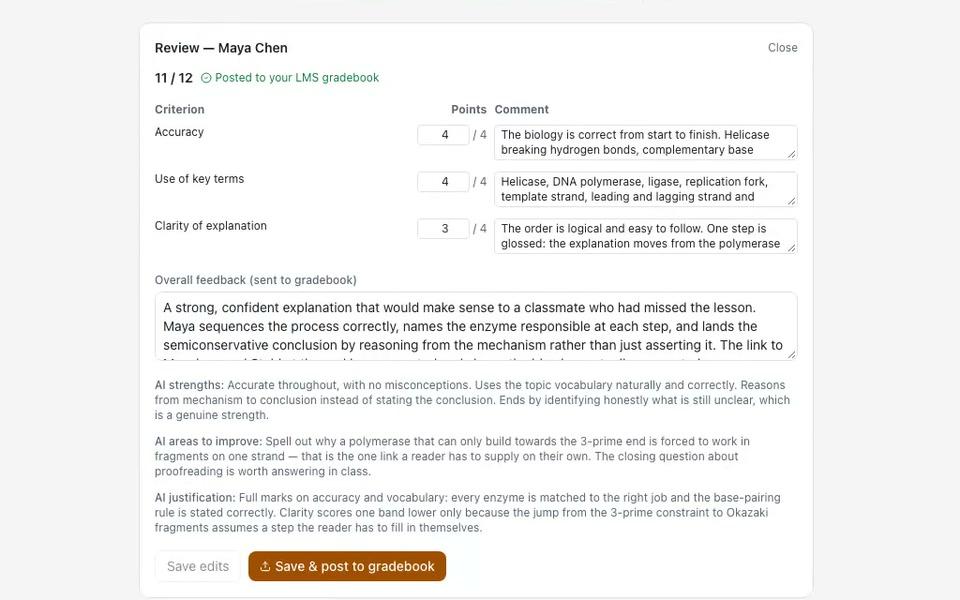
AI Grading reads each piece of work and marks it against your rubric, criterion by criterion. Every student gets a comment on each criterion and overall feedback.

  • Written and short answers, project files, and the documents, images, audio or video you upload to the AI Grading tool
  • Scanned or photographed handwritten work, marked against your rubric
  • For uploaded work: strengths, areas to improve and the reason behind the score
AI Grading
AI Grading review: a score out of 12, points and a comment for each rubric criterion, overall feedback for the student, and the AI's strengths, areas to improve and justification above a Save & post to gradebook button
5Before grades post

Review it, adjust it, approve it

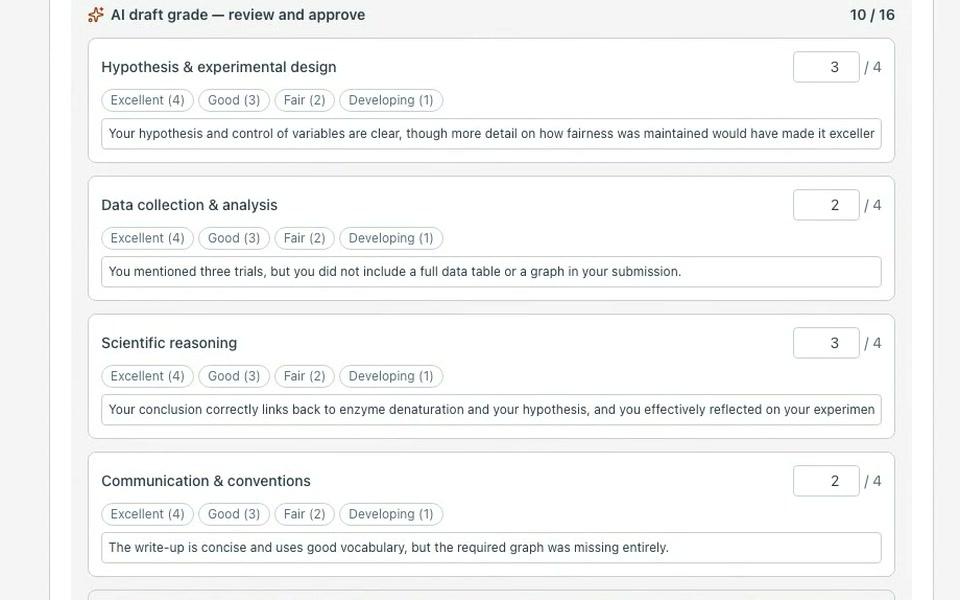
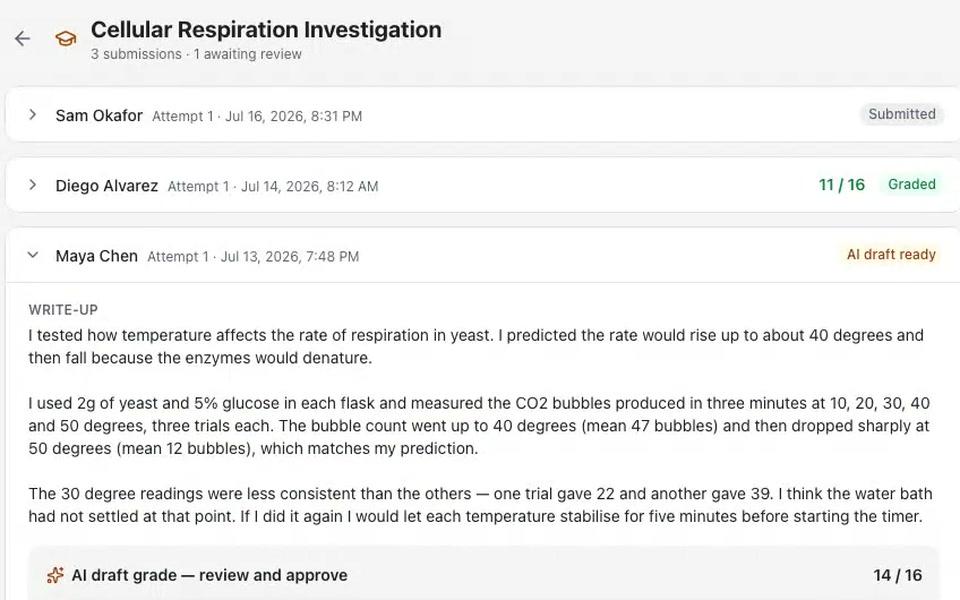
The AI does the first pass; you make the call. Open a submission, read the work beside the AI's marks, change any score, then approve. No score reaches the gradebook until you approve it.

  • AI draft ready: each submission waits in the queue with its draft grade
  • Change any criterion score or comment before you approve
  • Override a mark later and the gradebook updates
Project submissions
Project queue: one submission Graded 11/16, one "AI draft ready" open with the student's write-up and "AI draft grade — review and approve 14/16"
6If something looks off

Signals to look into, never a verdict

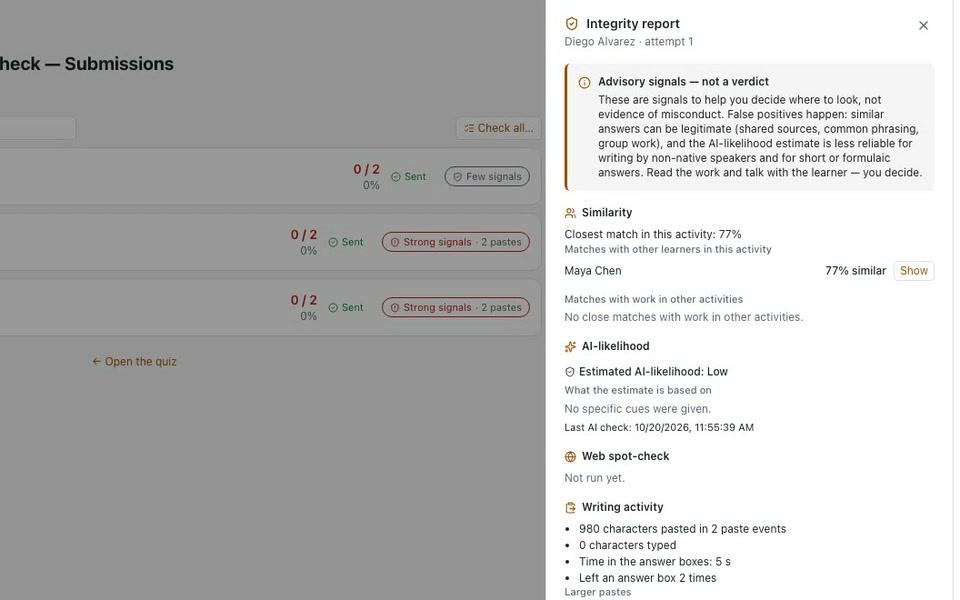
When an answer doesn't sound like the student, Integrity Check gives you signals to look into. You read the work and decide. It never changes a score.

  • A free similarity scan on written answers of 200 characters or more, against classmates and earlier work
  • Writing activity: typing and paste counts and timings, never the text itself
  • An AI-likelihood check you run when you choose, with its reasons
Integrity Check
Integrity report: "Advisory signals — not a verdict", 77% similarity to a classmate, AI-likelihood Low, writing-activity counts, beside the dimmed submissions with signal badges
7When grades post

Grades land where you already look

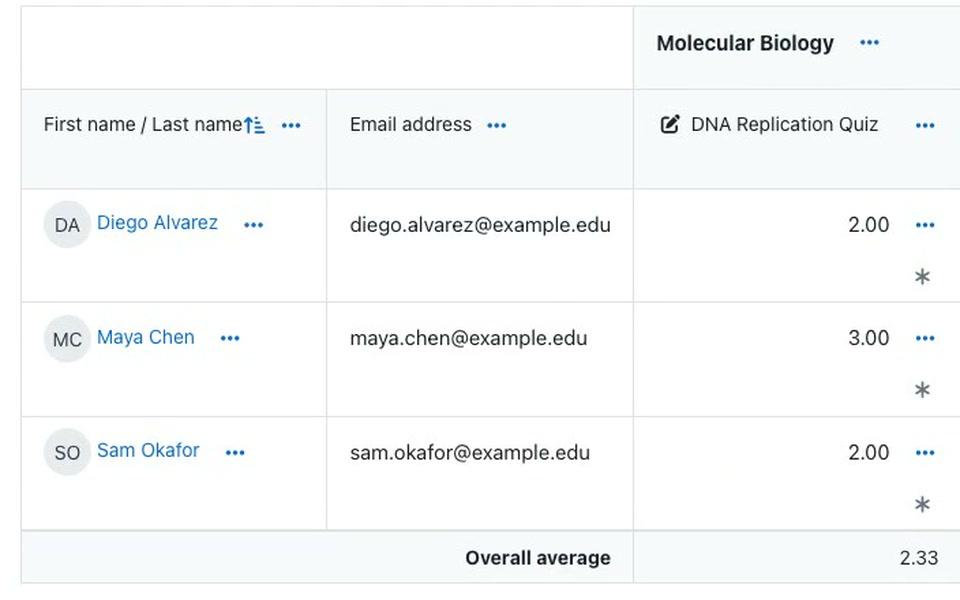
Scores go to your LMS gradebook over LTI 1.3, in a column for each activity. Auto-marked quiz scores post as students submit; AI-graded work posts when you approve it.

  • One gradebook column per activity, in Moodle, Canvas, Blackboard and Brightspace
  • Open and due dates are sent with the column, and late work is marked "Submitted late"
  • See for each score whether it was sent, is queued or failed to send
LMS gradebook
Moodle gradebook column for an EduGears AI quiz: three students' posted scores and the overall average
8After the quiz

Which questions tripped the class up?

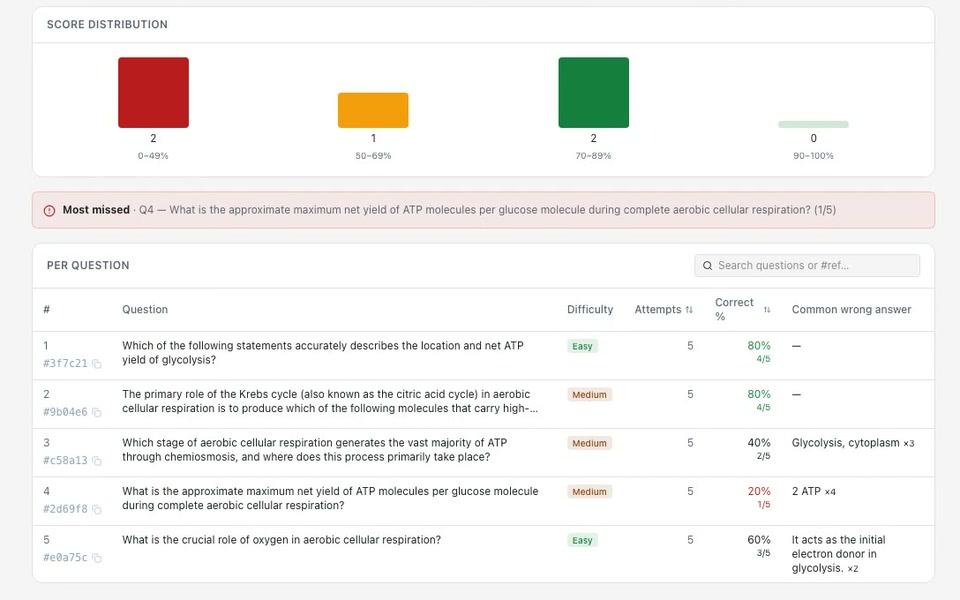
Quiz analytics shows how the class did and which questions caught them out, down to the wrong answer most students picked. Fix a weak question once in the bank, then push the change to every quiz that uses it.

  • Score distribution and a Most missed callout for each quiz
  • Per question: difficulty, attempts, percent correct and the most common wrong answer
  • In the bank: attempts, percent correct and the number of quizzes that use each question
Ask Cog“How did the class do on the Module 2 quiz?”
Quiz analytics
Quiz item analysis: score-distribution bars, a Most missed callout, and each question with its difficulty, attempts, percent correct and the most common wrong answer

What stays true

Inside your LMS

Students open every quiz and project from the course, with the login they already have.

Your rubric, your call

AI marks against the rubric you set, and you can override any mark.

Signals, not verdicts

Integrity Check is advisory and for instructors only. It never changes a score.

Open standards

Questions come in as Moodle XML, Canvas QTI or CSV and go out as PDF, Moodle XML or QTI 2.1. Grades travel over LTI 1.3.

Frequently asked questions

Can EduGears AI grade essays in Moodle and Canvas?

Yes. EduGears AI runs inside Moodle, Canvas, Blackboard and Brightspace over LTI 1.3. AI Grading marks written answers, project work and uploaded files against your rubric, criterion by criterion, with feedback for the student, and you can override any mark.

Does every student get the same quiz?

Not if you use a question group. A Question Group (random) draws a set number of questions from a bank as each attempt starts, so students sit different questions whenever the bank holds more questions than the group draws.

Can it mark handwritten work?

Yes: scanned or photographed handwritten work, marked against your rubric. You upload it to the AI Grading tool, or a student attaches it to a project. Handwriting is not marked inside quizzes.

Does Integrity Check decide whether a student cheated?

No. It shows advisory signals for instructors only: a free similarity scan on written answers of 200 characters or more, a writing-activity summary that never includes the text, and an AI-likelihood check you run when you choose. It never changes a score; you read the work and decide.

How do grades reach my gradebook?

Over LTI Assignment and Grade Services (AGS), in one gradebook column per activity. Each post is tracked, the open and due dates are sent with the column, and late work is marked "Submitted late". Diagnostic pre-checks never post a grade.

Is a rubric drafted with AI used straight away?

No. Draft with AI gives you a rubric draft to review. Nothing is saved or attached until you edit it and click Create rubric.

Ready to Add AI to Your LMS?

Get started in under 3 minutes. No credit card required. No intrusive plugins. Just connect and go.