Canvas Blueprint + AI: The Only LTI Tool That Syncs
What Is Canvas Blueprint and Why Does It Matter?
Canvas Blueprint is Instructure's answer to one of the oldest problems in higher-ed and K-12 LMS administration: how do you keep dozens — sometimes hundreds — of sections of the same course in sync? A Blueprint course is the master template. Once you associate child courses with it, any change you push from the master flows out to every associated section automatically. Pages, assignments, modules, quizzes, files, and settings can all be marked as locked or open for downstream edits.
The common pain point Blueprint was built for is painfully familiar to anyone who has run a multi-section program. Imagine you teach Intro to Biology and your university runs 20 sections every semester. Without Blueprint, you would either email a Canvas export to 19 colleagues or, worse, rebuild the same quiz, the same rubric, and the same module 20 times. Blueprint flips that workflow: build the quiz once in the master, sync, and every section now has it. Instructional designers love it. Department chairs love it. Faculty teaching scaled GE courses love it.
There is a catch, though. Blueprint sync is a Canvas-native feature. It propagates Canvas-native content — pages, quizzes, assignments — and external tool placements. It does not automatically propagate data that lives inside an external LTI tool's database. That is where most AI-powered LTI tools fall apart, and it is where EduGears AI is deliberately different.
The Problem: Most AI Tools Don't Support Blueprint Sync
When you add a typical LTI 1.3 AI tool to Canvas, the tool sees each launch as a standalone course context. The context_id claim in the LTI launch is different for the master and for every child section, so the tool's database treats them as twenty-one unrelated courses. The instructor authors a beautiful AI-generated question bank in the Blueprint master, runs a sync, and then opens a child section… only to find the question bank empty. The tool was launched in a new context, so it spun up an empty workspace.
The result is the worst of both worlds. Instructors get the cognitive cost of a new AI tool plus the manual labor Blueprint was supposed to eliminate. They end up logging into every child section, copying course IDs by hand, pasting them into a setup screen, or — most often — just rebuilding the content section by section. The very promise of Blueprint dies at the LTI boundary.
We have seen instructional designers walk away from otherwise-promising AI tools for exactly this reason. If a tool cannot respect Blueprint, it cannot ship at an institution running shared curriculum at scale. It becomes a personal productivity gadget, not a department-wide platform.
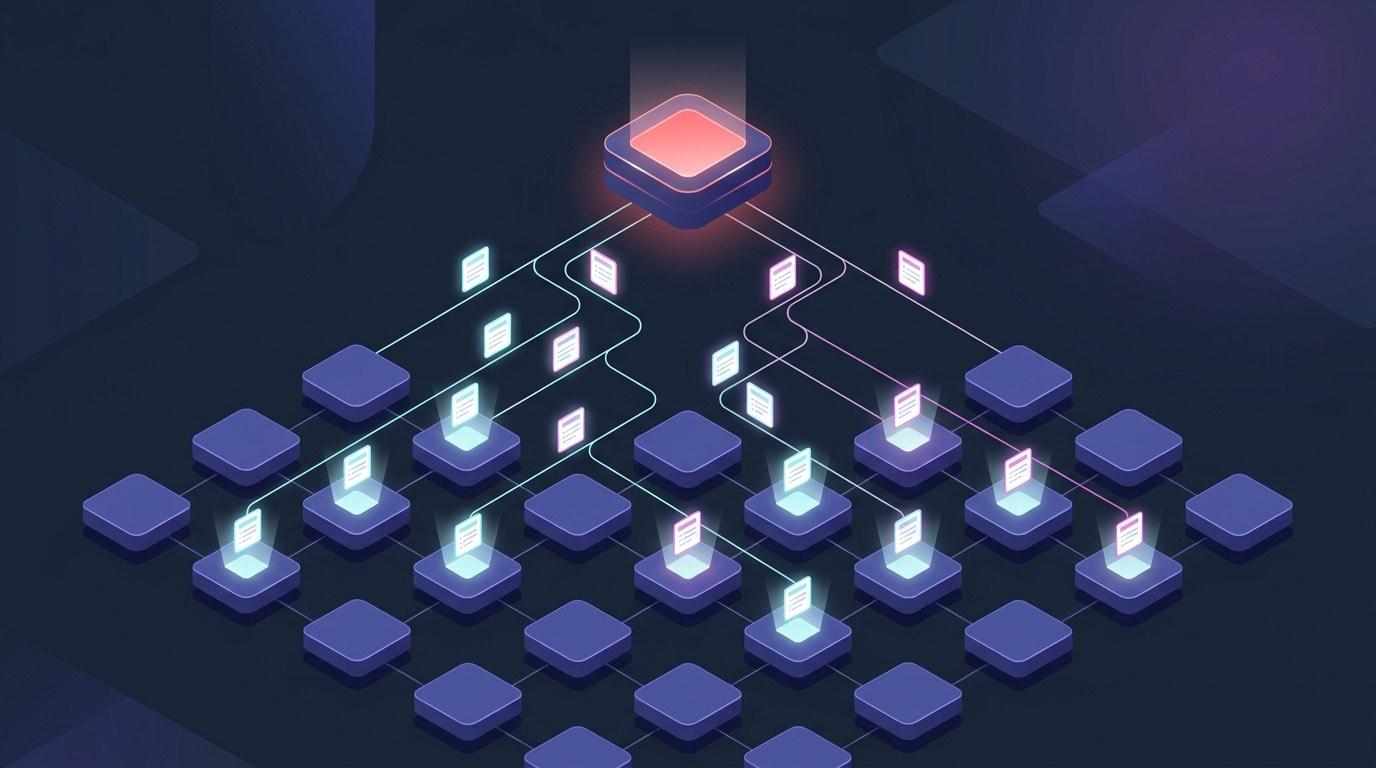
Most LTI tools treat each Canvas course in isolation. EduGears AI automatically detects master vs. child courses on launch — no manual linking, no config files, no copying course IDs.
How EduGears AI Solves This — Automatic Blueprint Detection
EduGears AI reads the LTI 1.3 launch context the moment an instructor opens the tool. Using Canvas-specific custom claims combined with the standard context_id and course relationships, EduGears AI identifies whether the launching course is a Blueprint master or an associated child section. From there, the tool maps the child back to its master automatically and serves the right content view. Master instructors see the authoring surface. Child instructors see the propagated content, ready to assign.
There is no setup wizard, no "paste your Blueprint course ID here" form, and no copy-paste of API tokens. The Canvas launch already tells EduGears AI everything it needs. Below is the behavior you can expect in production:
- Automatic detection — EduGears AI reads the LTI launch and identifies Blueprint master vs. child on every visit, no manual config.
- Auto-propagation — question banks, quizzes, rubrics, practice sets, and AI-generated study aids built in the master become available in every child section.
- Read-only in children — child-section instructors see master content as locked, exactly the way Blueprint locks Canvas-native pages.
- Per-section analytics — master instructors get rolled-up, per-section performance data without leaving the tool.
Step-by-Step: Setting Up EduGears AI in a Canvas Blueprint Course
- Install EduGears AI from EduAppCenter (one-click LTI 1.3 install) or via manual LTI 1.3 registration using your Canvas developer key.
- Add EduGears AI as an External Tool in your Blueprint master course — either at the course level or via a module item that points to the EduGears AI launch URL.
- Sync to child sections using the standard Canvas Blueprint sync. Canvas propagates the external tool placement; EduGears AI handles the data side automatically.
- Instructors in child sections open EduGears AI and immediately see the master's content — question banks, rubrics, AI-generated materials — ready to assign with one click.
In real-world deployments, this whole flow takes under five minutes once the Canvas developer key is in place. Most of the time is spent in the Canvas UI itself, not in EduGears AI. Because EduGears AI uses standard LTI 1.3 Advantage (with the Names and Roles Provisioning Service and Assignment and Grade Services), there is nothing custom to maintain on the IT side after the initial registration.
Want this in your Canvas instance? See the full setup guide.
View Setup Guide →What Content Syncs Automatically?
When we say a piece of content "syncs," we mean it: anything authored in the Blueprint master is immediately available in every associated child section without re-creating, re-uploading, or re-generating the content. There are no separate "push" buttons inside EduGears AI and no nightly batch jobs. The lookup happens live on launch, so if you update the master at 9:47 AM, every child section sees the change the next time it loads the tool.
- Question banks ✅
- Quizzes ✅
- Rubrics ✅
- Practice sets ✅
- AI-generated slides, study guides, worksheets ✅
Crucially, grade passback still works per-section. EduGears AI uses LTI Assignment and Grade Services (AGS), so when a student in section 14 completes an AI-graded quiz, the score lands in section 14's gradebook — not the master's, and not some shared bucket. The content is shared; the student data stays appropriately partitioned.
Per-Section Analytics for Master Instructors
Authoring is only half the story. The other half is closing the feedback loop: which questions are too easy, which rubric criteria are graders disagreeing on, which sections are pulling ahead. EduGears AI gives Blueprint master instructors a per-section analytics view that rolls up performance data across every child section associated with the master.
From the master, you can see overall quiz performance broken down by section, question-level item analysis (difficulty and discrimination), and the distribution of AI-graded rubric scores. If question 7 has a 26% correct rate across every section, the problem is the question. If only sections 3 and 12 are underperforming, the problem is probably instruction, not item quality. That distinction used to require an analyst with a spreadsheet — now it is a two-click view.
This matters because Blueprint courses are typically the highest-stakes courses on campus. They are the GE requirements, the certification-track sequences, the K-12 district-wide curriculum. The faster a coordinator can see signal, the faster they can patch a bad question in the master and watch every section benefit on the next sync.
Who This Is For
EduGears AI's Blueprint support is not a marginal feature for a marginal audience. If you are running shared curriculum at any meaningful scale on Canvas, this is the difference between an AI tool that ships and one that gets quietly removed at the end of the semester.
- Large universities with 100+ section deployments of high-enrollment courses (Intro Bio, Calc I, Comp 101).
- K-12 districts running Canvas at scale across schools and campuses with a shared instructional core.
- Instructional designers who own the master and need authoring + analytics in one tool.
- Faculty teaching multi-section courses who currently rebuild quizzes and rubrics by hand every term.
Frequently Asked Questions
Does EduGears AI auto-detect Blueprint courses, or do I configure it manually?
Auto-detect. EduGears AI reads the LTI 1.3 launch claims on every visit and identifies whether the launching course is a Blueprint master or an associated child section. There is no setup screen for this, no course-ID paste field, and no separate sync button — the mapping happens server-side the moment Canvas hands off the launch.
Do students in child sections see master content as editable?
No. Child-section instructors and students see master-authored content as read-only, the same way Blueprint locks Canvas-native pages. Child instructors can assign master quizzes and rubrics to their students, but they cannot mutate the master's question banks or rubric criteria. This preserves the single source of truth Blueprint is designed around.
What happens if I update a question bank in the master after the school year starts?
The update is live the next time any child section loads EduGears AI. There is no overnight job and no manual re-sync inside EduGears AI. We recommend a quick announcement to section instructors if the change affects an already-assigned quiz, just so they know the underlying bank shifted. In-flight student attempts are not retroactively re-graded.
Does grade passback work in Blueprint child sections?
Yes. EduGears AI uses LTI Advantage Assignment and Grade Services (AGS), so when a student completes an AI-graded quiz or rubric in a child section, the score posts back to that child section's Canvas gradebook. Each section's gradebook stays correctly scoped — the content is shared from the master, but the grades belong to the section where they were earned.
Try Canvas Blueprint sync with EduGears AI — free to get started.
AI for Canvas →EduGears AI starts free, supports BYOK with your own OpenAI or Gemini key, is FERPA + COPPA compliant, and is listed in EduAppCenter for one-click Canvas install. If you run multi-section Canvas courses, see AI for Canvas for the full feature set, or read AI grading in Moodle, Canvas & Blackboard to see how the grading side works across every LMS we support.
Try EduGears AI Free
Setup in 3 minutes via LTI 1.3. No credit card required. All 30 AI tools included on the free tier.
Get Started Free →