Meet Cog: One AI Assistant on Every Page of Your LMS
Ask a teacher what slows an AI tool down and you rarely hear "the answers aren't good enough". You hear something duller: I had to go and find it, and then I had to explain what I was talking about.
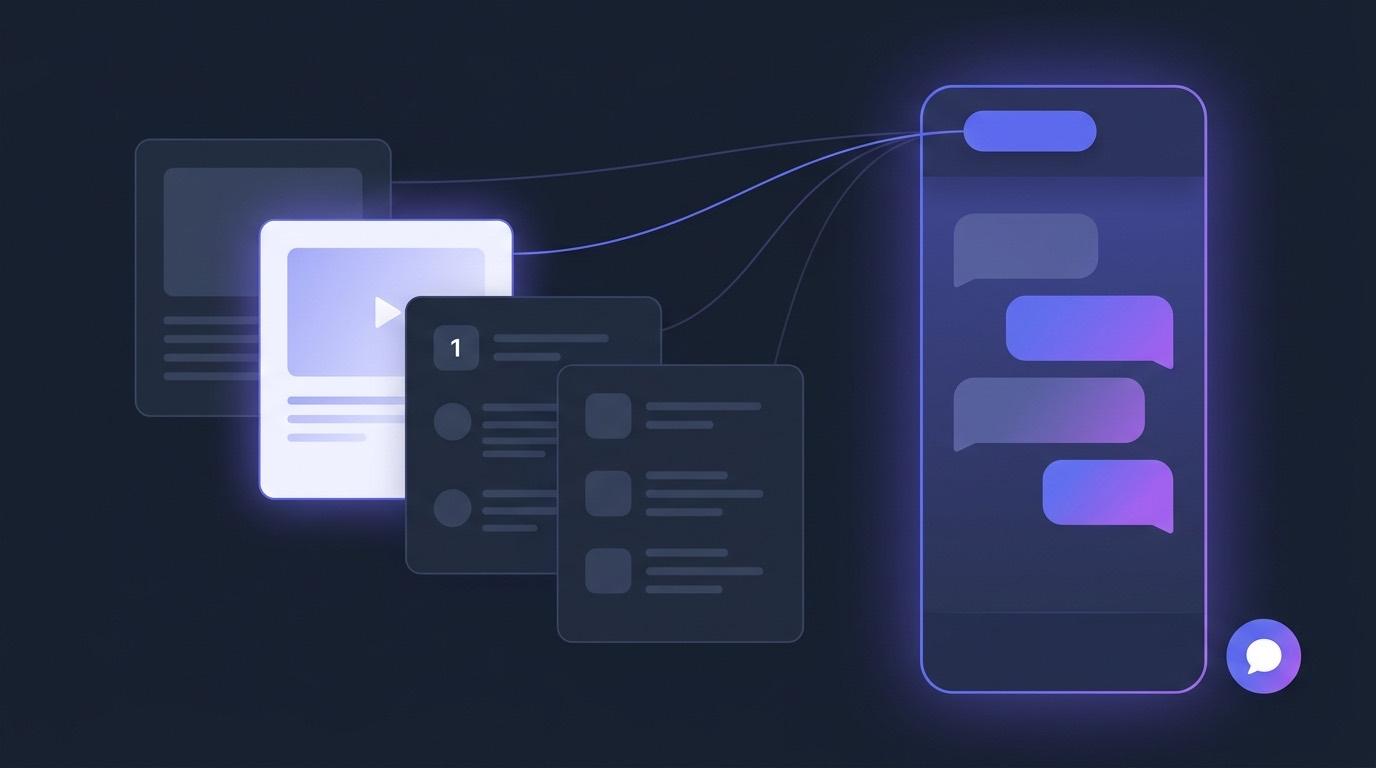
That was true of our own chat. The AI Tutor was a page. The AI Assistant was another page. A separate assistant bubble sat on some resources and not others, and the module player had a tutor sidebar of its own. Four surfaces, four threads, and every one of them started the conversation by asking you to describe the thing already on your screen.
Meet Cog — the EduGears AI assistant surface. One chat, reachable from every page, that already knows what you were looking at when you opened it.
What Cog is
Cog now has its own entry among the 30 AI tools, next to the AI Agent (Cog Insights) — not because it replaces anything, but because it is where you meet the AI Tutor and the AI Assistant now. Instead of navigating to a chat, you click Ask Cog in the bottom-right corner of any page (or press Cmd/Ctrl + K) and a dock opens beside your work.
The dock is resizable — drag its left edge to widen it, its bottom edge to change its height, the corner for both — and the size you pick comes back the next time you open it. Close it and you drop back to the bubble with the conversation intact.
- One chat, everywhere. The tutor sidebar, the per-resource assistant and the two full-page chats are replaced by a single dock. Old links still work:
/tutorand/assistantopen Cog with the right persona already selected. - Threads are kept. Start a fresh conversation with New Session, reopen or delete an earlier one from the history menu, and download any conversation as a PDF.
- Answers stream. You watch the reply build instead of waiting for it.
It already knows the page you are on
Under the Cog heading sits a small chip. It names what the conversation is about right now — the slide deck you have open, the lesson you are on in the module player, the question in front of you. Cog works it out from the page; you never tell it.
Click the chip and you get an Ask about list of every level available from where you are: resource, lesson, module, course, and General for "anything, no page context". The chip only ever widens. You can pop up from a worksheet to its course, but you cannot point Cog at something the page is not showing — there would be nothing to ground the answer in.
Each scope keeps its own thread, so a question about one worksheet does not turn up in the conversation about the course as a whole, and the history menu labels past conversations with the scope they were held in. As you navigate, the chip follows you — the conversation is not interrupted, it just relabels.
The practical effect: the difference between "explain the second worked example on this page" and pasting the worked example in first.
One toggle to what your students see
Cog carries the two personas EduGears AI has always had, and a toggle beside the wordmark switches between them.
- AI Assistant — the teaching-side persona. Lesson planning, content ideas, curriculum design. It shows a Sources list under replies that drew on the course materials you uploaded to Curriculum Intelligence.
- AI Tutor — the learner-facing persona. Explanations, hints and walkthroughs, with the four teaching styles kept as they were: Tutor for step-by-step explanation, Mentor for study strategy, Socratic to be led to the answer through questions, Coach for exam prep. The learning-mode dropdown beside them — Default, Adaptive, Clear Doubts, Exam Prep, Concept Map — is unchanged. The tutor answers without a sources list, deliberately.
Instructors open on the assistant. Flip to the tutor and you are not getting an approximation of the student experience — you are getting the student experience: same questions, same answers, same restraint around unattempted practice questions. Turn on Preview as Student and Cog moves to the tutor and hides the toggle for as long as the preview lasts, at every chip level, including pages where a learner gets no Cog at all.
Learners have no toggle. Not a hidden one — no toggle at all, and the server enforces that regardless of what any browser sends.
Safe to leave on during assessment
This is the question every academic-integrity conversation arrives at, so here is the exact behaviour.
On a practice question a learner has not attempted yet, Cog gives hints rather than the answer — and it keeps doing that if the learner widens the chip, so widening is not a way around it. Full explanations unlock only when a graded attempt is actually on record; a client claiming to be in post-attempt review without one gets exactly the pre-attempt treatment.
The grounding is gated the same way. A learner's chat can only be grounded in material that has actually been shared with learners, of a type learners are meant to see: lesson plans and question banks never load, whatever is asked for. And the verbatim source snippets from Curriculum Intelligence are instructor-only at the API, not just hidden in the interface.
Nothing said to Cog is graded, and nothing is sent to your LMS gradebook.
It answers "how do I…" too
Cog is grounded two ways. The first is your curriculum, through Curriculum Intelligence. The second is EduGears AI's own help documentation — so "how do I send this to the gradebook?" asked from the page in question gets an answer about that page rather than a generic one.
The assistant lists the help articles it drew on in its Sources panel, marked with a book icon, so an instructor can read the underlying article rather than take the chat's word for it. The tutor uses them silently, in keeping with its no-citations rule, and learners are only ever shown learner-facing documentation whichever page they ask from.
For an administrator this is the quiet win: the first line of support moves into the product, on the page where the question came up.
Where you will find it
Everywhere EduGears AI runs.
- Inside your LMS. Launch an EduGears AI activity from Moodle, Canvas, Blackboard, Brightspace or any other LTI 1.3 platform and the Ask Cog bubble is there — on lessons, on resources, in the module player, on quizzes and practice sets.
- In the EduGears AI LMS. Our own white-label LMS opens Cog as a panel of its own rather than a bubble, and the chip follows the LMS page you move to. There is exactly one Cog on screen — an activity opened inside the LMS does not add a second bubble.
- In the EduGears AI Studio publisher workspace. Same dock, same chip, tuned to authoring.
One place Cog deliberately does not appear is the Select Content picker you land on when adding an EduGears AI activity — that dialog closes the moment you pick something, so there is no page there to ask about.
It is already on
There is no rollout to schedule and no setting to find. Cog is on by default for every EduGears AI institution — existing platforms and new registrations alike — and on every plan, including the free one. Your instructors will see the bubble the next time they launch from a course.
If an institution would rather not have it, an administrator can switch it off for their platform from the Features page in the management portal, and the separate AI Tutor and AI Assistant pages come back exactly as they were.
Cog conversations run on AI credits — 1 credit per turn on every plan, drawn from purchased AI credits or the free plan's 200-credit grant — or on your own API key with Bring Your Own Key.
Cog is on every page of EduGears AI, on every plan including the free one. Connect your LMS in about three minutes and try it.
Get started freeFrequently asked questions
Is Cog counted as an AI tool?
Yes — Cog has its own entry among the 30 AI tools, alongside the AI Agent (Cog Insights). It is the surface where you meet the AI Tutor and the AI Assistant, which keep their own entries with the same styles, learning modes and grounding they always had; what changed is that you reach them from every page instead of navigating to a chat.
Can students use Cog to get quiz answers?
No. On a practice question a learner has not attempted yet, Cog gives hints rather than the answer, and it keeps doing that if the learner widens the context. Full explanations unlock only when a graded attempt is on record. Learner chats can only be grounded in material actually shared with learners, of a type learners are meant to see — lesson plans and question banks never load — and this is enforced on the server, not in the browser.
Do teachers and students get the same Cog?
Instructors open on the AI Assistant and can switch to the AI Tutor with a toggle; learners get the tutor only, with no toggle at all. When an instructor switches to the tutor — or turns on Preview as Student — what they see is exactly what a learner would see, including the restraint around unattempted practice questions, so you can check it before class.
Which LMS does Cog work in?
Any LMS that supports LTI 1.3 Advantage — Moodle, Canvas, Blackboard and Brightspace among them. Cog rides on the EduGears AI activity, so wherever your instructors and students already launch EduGears AI from, the Ask Cog bubble is there. It also runs in the EduGears AI LMS and in the EduGears AI Studio publisher workspace.
Do we have to turn Cog on?
No. It is on by default for every institution, existing and new, on every plan including the free one. An administrator can turn it off for their platform from the Features page in the management portal, which restores the previous separate AI Tutor and AI Assistant pages.
What happens to our existing chat conversations?
They are still there. Conversations are stored per user, per persona and per scope, so they survive closing the tab and relaunching from your LMS, and the history menu labels each one with the context it was held in. Old links to /tutor and /assistant still open — they land on Cog with the right persona already selected.
Try EduGears AI Free
Setup in 3 minutes via LTI 1.3. No credit card required. All 30 AI tools included on the free tier.
Get Started Free →