Ask Your LMS Anything: How Cog Answers Questions About Your Class
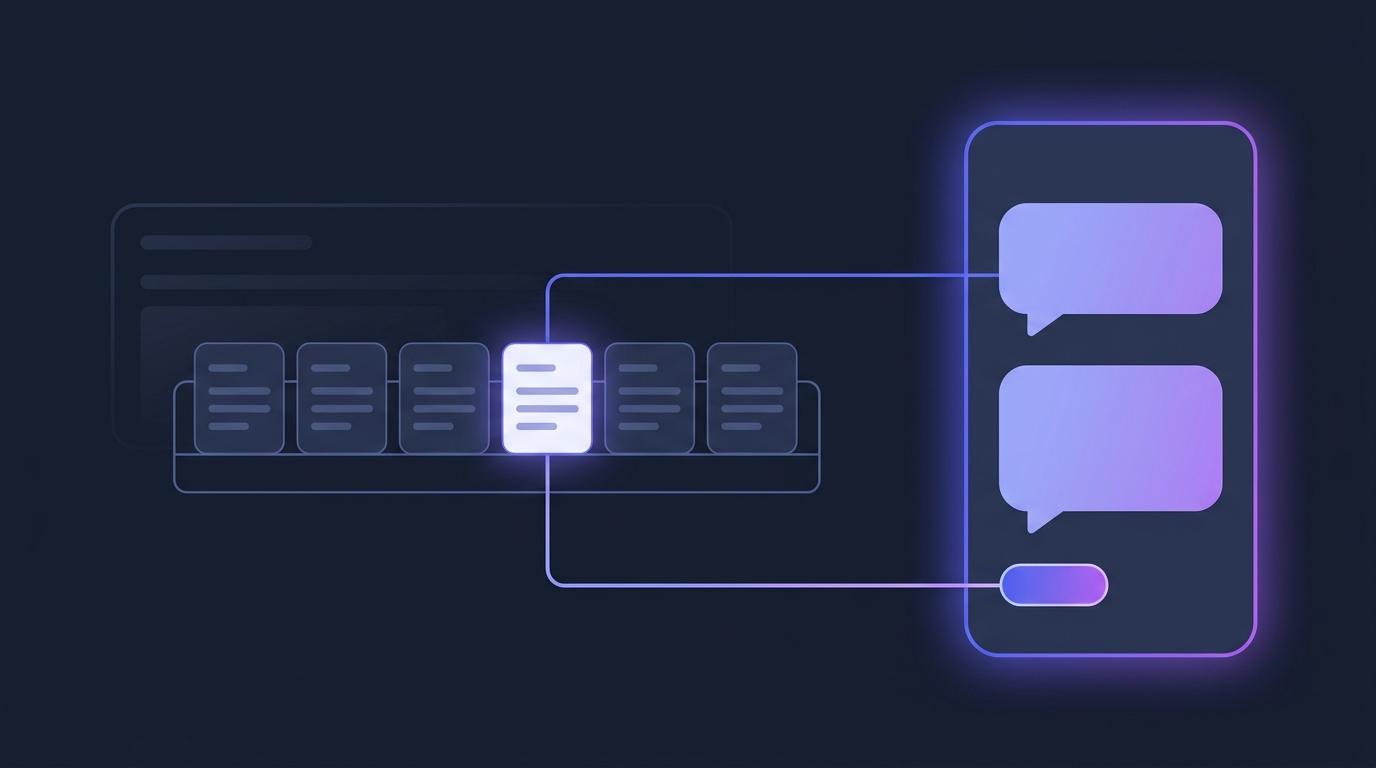
Every instructor teaching in Moodle or Canvas has a small pile of questions they never quite get round to asking. Who hasn't started the new module? How did the class actually do on that quiz? Which four people have gone quiet since the second assessment? None of these are hard to answer — the reports are right there in the course. They just cost three clicks and a filter each, and the week is already full, so the questions wait until the end of term, when it is too late to do anything about them.
Cog, the assistant that already sits on every EduGears AI page inside your course, now answers those questions in plain words. Not by guessing, and not by summarising something it half-remembers: by opening the same reports you can open, applying the filters, reading the rows that are actually there, and telling you which report it used. This is what people mean when they call an assistant an agent — it looks it up before it answers.
The questions nobody gets round to asking
The interesting thing about class data is almost never the report. It is the question the report happens to answer. An instructor rarely wants to look at a module progress table; they want to know whether the people who struggled with Module 2 are the same people who have not started Module 3. That is one thought, and in the normal course of things it becomes a report, a filter, a second report, and a mental join between the two — so it does not happen.
Lowering the cost of asking is the entire point. When the question costs one sentence, it gets asked on a Tuesday afternoon rather than in a post-mortem. Nothing about the underlying data changes; what changes is how many times a week somebody actually looks at it.
A real question, and the answer it gets
An instructor opens the EduGears AI activity in their Biology 101 course, presses the Ask Cog button in the corner, and types: how did the class do on the Module 2 quiz?
“Eighteen of the 22 learners in Biology 101 have submitted the Module 2 quiz, and the average score is 64%. Eleven scored above 70% and seven below 50%. Four haven't attempted it yet: Amara Osei, Daniel Ruiz, Priya Nair and Tom Becker. Want me to check how those four are doing on the module itself?” — Quiz Submissions · 18 rows
The last line is the part that matters. Under the answer sits a chip naming the report Cog used and how many rows it read. Click it and the Quiz Submissions report opens inside your course with the same filters already applied, so every figure in that paragraph can be checked against the table it came from in a single click. And because the follow-up question — how are those four doing on the module? — is a different report, Cog offers to go and read that one too.
What happens under the hood
In plain words, and without a diagram, four things happen between the question and the answer.
- It picks a report. Cog has a short, fixed list of reports it is allowed to open — the same ones the integration already shows you. It works out which one answers the question, and which course, module or assessment to point it at.
- It reads the rows. The report runs with your filters, as you, and Cog reads what comes back. Nothing is recalled from the model's memory and nothing is estimated; if there are no rows, there is no answer, and it says so.
- It writes the answer. The numbers in the sentence are counted from the rows it just read, in the language you asked in, at the length a colleague would use.
- It shows its source. The chip under the answer names the report and the row count, and opens that report with the filters applied. The figure in the answer and the figure on the page are the same figure.
If a question needs two reports, Cog opens two. If a question cannot be answered by any report on its list — and plenty cannot — it says what it does not have rather than producing something plausible. An assistant that admits a gap is worth considerably more than one that never admits anything.
The reports it can read
The list is short on purpose. These are the reports your EduGears AI integration already exposes in the course; the agent gained the ability to open them on your behalf, not a new set of data about your learners.
| Report | What it holds | Ask it something like |
|---|---|---|
| Module Progress | How far each learner has got through a module. | Who hasn't started Module 3? |
| At-Risk Learners | Learners the course data flags as falling behind. | Who is falling behind in this course? |
| Quiz Submissions | Who submitted a quiz, when, and what they scored. | How did the class do on the Module 2 quiz? |
| Quiz Score Distribution | How a class's scores spread across the range. | How did scores spread on the last quiz? |
| Assessment Submissions | Submissions and marking status for an assessment. | How many have handed in the project? |
| Course Learners | The course roster as your LMS passes it over LTI 1.3. | How many learners are on this course? |
That is the whole list, and it is worth knowing that it is the whole list. The honest definition of what an agent can do is the set of tools it has been given; anything outside that set it simply cannot reach.
The guardrails it runs under
- Read-only, always. Cog can look; it cannot change anything. No grade touched, no submission edited, no message sent, nothing posted to your gradebook. That is true because none of its tools can write — not because it has been asked politely in its instructions — and the connections behind them are read-only as a backstop.
- Only your own courses. The agent runs as the person asking, on the platform they launched from: same role, same courses, same permissions your LMS already grants over LTI 1.3. A course an instructor cannot open is not open to Cog while they are the one asking.
- Instructor-only. Learners meet the AI Tutor, grounded in their own lesson and assessment-safe — it will not reveal quiz questions or an answer key before an attempt is graded. Class-data questions are instructor-only, and that is enforced on the server rather than hidden in the interface.
- Traceable, or silent. Every figure names the report it came from and links to it. Where a report has no rows for the question, the answer says so instead of filling the gap.
Switching it on
There is nothing to install. Cog's class-data questions are part of the EduGears AI LTI 1.3 integration your administrator already registered — no plugin to deploy, no second registration in Moodle or Canvas, and nothing for an instructor to set up. If your institution is not connected yet, the setup guide walks through the registration end to end; it is usually a single visit to your LMS's external-tool settings.
Administrators stay in control of the capability itself. Class-data questions can be switched on or off for the whole platform at any time from the Features page in the EduGears AI management portal, and the rest of Cog — coursework help for learners, product walkthroughs for instructors — carries on either way. For the plain-English background on what an agent is and why the limits are the design, our AI agents page covers it with a worked example.
Ask your own course a question — add EduGears AI to the Moodle or Canvas you already run and open the assistant beside your class.
See it in your LMSFAQ
What can I ask Cog about my class?
Questions your course reports can answer: who hasn't started a module, how far a class has got, who is falling behind, how many learners submitted a quiz and how their scores spread, how many have handed in an assessment, and who is on the course roster. Cog picks the report, applies the filters and answers from the rows it read.
Where do the numbers come from?
From the same reports you can open yourself inside the course — Module Progress, At-Risk Learners, Quiz Submissions, Quiz Score Distribution, Assessment Submissions and Course Learners. Each answer carries a chip naming the report it used and the number of rows it read, and clicking it opens that report with the same filters applied.
Can it change grades or student records?
No. Cog is read-only by design and by construction: it has no tool that writes, edits, sends or deletes, and nothing it does reaches your LMS gradebook. Marking stays a human action in the normal screens, where your approval is still what posts a score back over LTI 1.3 AGS.
Can students use it to ask about their class?
No. Learners get the AI Tutor, grounded in their own lesson and assessment-safe — it never reveals quiz questions or an answer key before their attempt is graded. Class-data questions are instructor-only and enforced on the server.
Does it work in Canvas and Blackboard as well as Moodle?
Yes. It is part of the EduGears AI LTI 1.3 integration, so it works inside Moodle, Canvas, Blackboard, Brightspace and other LTI 1.3 platforms, launched from the course your instructors already teach in.
Do we have to install anything to use it?
No. If your administrator has already registered the EduGears AI tool, class-data questions are there — no plugin, no second registration, nothing for instructors to configure. Administrators can switch the capability on or off for the whole platform from the Features page in the management portal.
Try EduGears AI Free
Setup in 3 minutes via LTI 1.3. No credit card required. All 32 AI tools included on the free tier.
Get Started Free →