A Calmer Quiz: Navigate It, Flag It, and Build on Your Last Try
Most of what makes a quiz stressful has nothing to do with how hard the questions are. It's the not knowing: Have I answered everything? Which one did I want to come back to? Where even am I? A learner ends up holding the shape of the whole quiz in their head while also trying to think about the actual content — and the weakest students carry the heaviest version of that load.
This release is about taking that load off. Inside Moodle, Canvas or any LMS you launch EduGears AI from, a student now has a map of the quiz, a way to mark what to return to, and — when you allow it — a retake that starts from where they got to instead of a blank slate. None of it makes the quiz easier. It just makes it legible.
The goal is a quiz where a nervous student spends their attention on the questions, not on tracking the quiz. Confidence comes from knowing where you stand.
The quiz-taking anxiety nobody designs for
Ask any teacher what students do wrong under time pressure and you'll hear the same things: they leave a question blank and forget to go back, they burn ten minutes on the one hard item and run out of road, or they submit without realising three questions were never answered at all. These aren't knowledge gaps. They're navigation gaps — and they punish the anxious and the disorganised far more than they punish anyone who didn't study.
A good exam interface should quietly answer three questions at all times: how much is left, what have I skipped, and can I get back to the thing I flagged. Here's how each one now works.
A question navigator that shows where you are
While a student is sitting a quiz, a small pill sits at the top of the question column showing how many they've answered — "12/20". It updates as they go, so "how much is left" is answered without a single click.
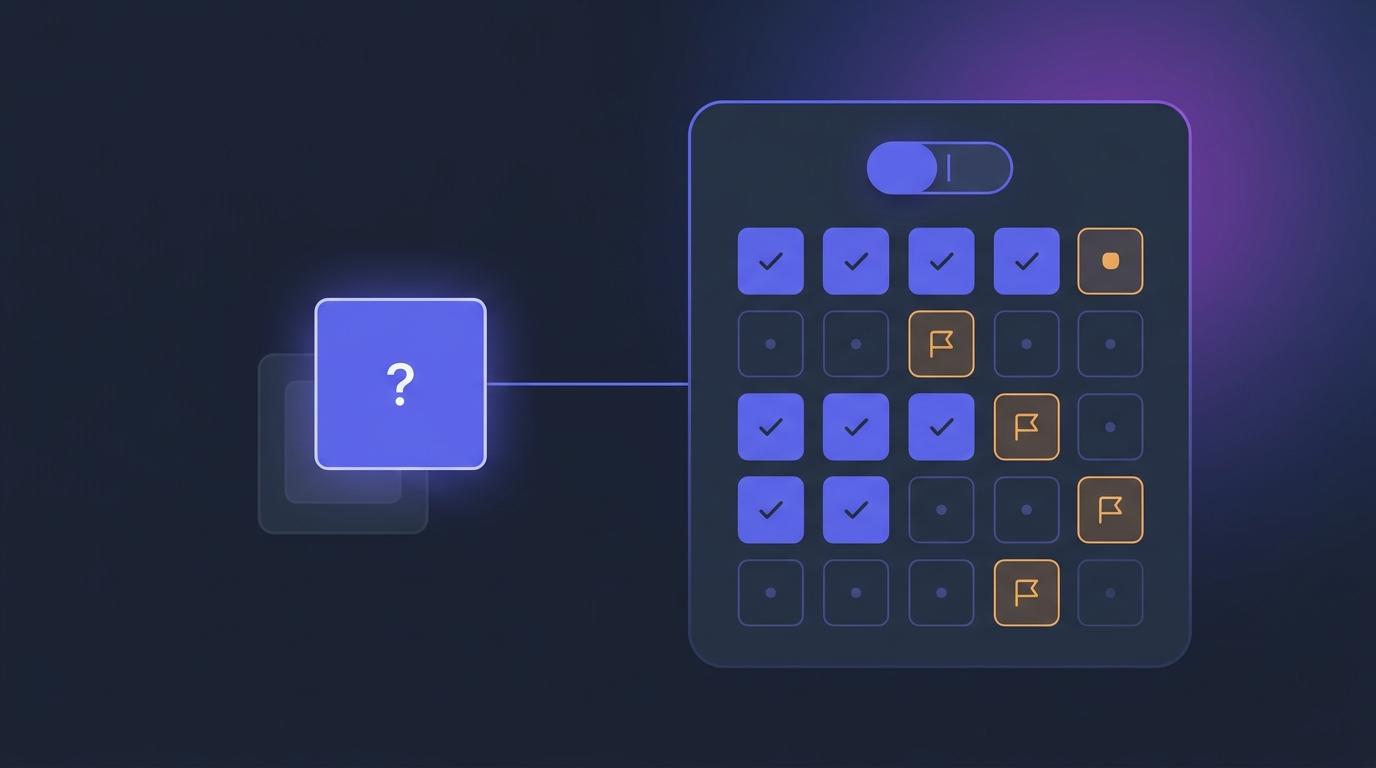
Click the pill and a Questions drawer slides out with a numbered grid of the whole quiz. Every question shows its state — answered, not answered, or flagged — and clicking any number jumps straight there. A student who wants to check they filled in question 14 doesn't scroll back through thirteen questions to find it; they open the grid, glance at it, and tap.
The navigator appears only where it belongs: during an attempt. It isn't on the start card, it isn't on a submitted result, and it isn't there when a student is reviewing a past attempt. Practice sets get it in standard mode; flashcard mode keeps its own dots, because flipping cards is a different kind of moving around.
Flag for review, and find your way back
Every question now has a Flag for review button. Flagging is the small, deliberate act that replaces the mental sticky note: a student who hits a hard question can decide to move on on purpose, knowing the system is holding their place.
Flags show up in the navigator grid with their own marker, and a running "3 questions flagged" count tells a student exactly how many loose ends are still open before they submit. The advice teachers have given for decades — skip the hard one, keep moving, come back — finally has a button behind it instead of a hope.
And the flags are durable where it counts. On a graded quiz, they're saved with the attempt, so they survive a page reload, a browser crash or a lost connection — a student who gets bumped offline mid-exam comes back to the same flags they left. In a practice set, where the stakes are lower, flags last for the session. The behaviour matches the seriousness of the setting.
Readable for colour-blind students
A status grid is only useful if every student can read it, and roughly one in twelve boys and one in two hundred girls has some form of colour-vision deficiency. A grid that says "green means answered, amber means flagged" and nothing more is invisible to a meaningful slice of any class.
So in the navigator, each state carries its own glyph as well as its own colour. Answered, not answered and flagged are told apart by shape first — a student who can't distinguish the colours still reads the grid correctly. It's the kind of detail that never shows up in a feature list, but it's the difference between an accessible exam and one that quietly disadvantages the same students every time.
Retakes that build on your last attempt
When a quiz allows more than one attempt, retaking it has always meant starting over — retyping the answers you already got right just to reach the two you want to fix. That's busywork, and it turns a second attempt from a learning opportunity into a chore.
There's now a setting for this. In the quiz settings panel, tick "Each attempt builds on the last" and a student's next attempt opens pre-filled with the answers they gave last time. They fix what was wrong instead of reproducing what was right — which is exactly the behaviour you want from a mastery-style quiz where the point is to get it correct, not to get it correct from cold twice.
It only applies where it can. On a single-attempt quiz the setting greys out and tells you why, so there's no confusion about what it does. And students are always told which kind of retake they're starting: the start card says "Each attempt builds on your last — your previous answers will be filled in." If you've edited the quiz since their last attempt, they get a plain notice that this one starts fresh, so nobody is surprised by a blank form they expected to be filled.
The correct answer is no longer usually (A)
One more fix, quieter but worth naming. AI-generated multiple-choice questions had a tell: the correct option turned up first often enough that a sharp student could feel it. Once a class notices that pattern, the quiz is measuring pattern-spotting, not knowledge.
Newly generated multiple-choice questions now have their options shuffled when they're saved, so the right answer lands wherever it lands. This applies to questions generated from now on. Questions you already have — and anything you imported — keep the order they came in with, because reshuffling a bank you've already reviewed and reasoned about would cause more surprises than it solved.
All of it inside Moodle and Canvas
None of this is a separate app or a new window. EduGears AI quizzes run as a standard external-tool activity inside the LMS you already use — Moodle, Canvas, Blackboard or Brightspace — launched with the identity a student already has, with scores flowing back to your gradebook through LTI grade passback. The navigator, the flags, the resume-from-last-attempt retake and the shuffled options are simply part of how the quiz behaves once it's embedded in your course.
For the teacher, that means a calmer, fairer exam without changing a single thing about how you set it up. For the student, it means the quiz stops fighting them — and that's usually the difference between a score that reflects panic and one that reflects what they actually know.
AI-fy your LMS in about three minutes and give your students a quiz they can actually navigate — 32 AI tools, free to start, and a Moodle Certified Integration.
Get started freeFrequently asked questions
What is the quiz question navigator?
It's a small "12/20" pill at the top of the question column while a student is sitting a quiz. Clicking it opens a numbered grid of every question, marked answered, not answered or flagged, and clicking any number jumps straight to that question. It appears only during an attempt — not on the start card, a submitted result, or a review of a past attempt.
How does Flag for review work in a quiz?
Every question has a Flag for review button. Flagged questions show up in the navigator grid with their own marker and a running "flagged" count, so a student can deliberately move past a hard question and find their way back before submitting. On a graded quiz the flags are saved with the attempt and survive a reload or a lost connection; in a practice set they last for the session.
Is the navigator usable for colour-blind students?
Yes. Each state in the grid — answered, not answered, flagged — carries its own glyph as well as its own colour, so it reads correctly for a student with colour-vision deficiency rather than relying on colour alone.
Can a retake keep a student's previous answers?
Yes, where the quiz allows more than one attempt. Tick "Each attempt builds on the last" in the quiz settings and the next attempt opens pre-filled with the student's previous answers, so they fix what was wrong instead of retyping what was right. The setting greys out on single-attempt quizzes, and the start card always tells the student which kind of retake they're beginning.
Why were my multiple-choice answers usually option A?
AI-generated multiple-choice questions used to place the correct option first often enough to be noticeable. Newly generated questions now have their options shuffled when they're saved, so the correct answer is no longer disproportionately (A). Questions you already have, and anything imported, keep their original order.
Does this work in Moodle and Canvas?
Yes. EduGears AI quizzes run as a standard LTI 1.3 external-tool activity inside Moodle, Canvas, Blackboard or Brightspace, with grade passback to your gradebook. The navigator, flags, resume-from-last-attempt retakes and shuffled options are all part of the embedded quiz experience.
Try EduGears AI Free
Setup in 3 minutes via LTI 1.3. No credit card required. All 32 AI tools included on the free tier.
Get Started Free →