Course Media Library: Replace a File, Update Every Lesson
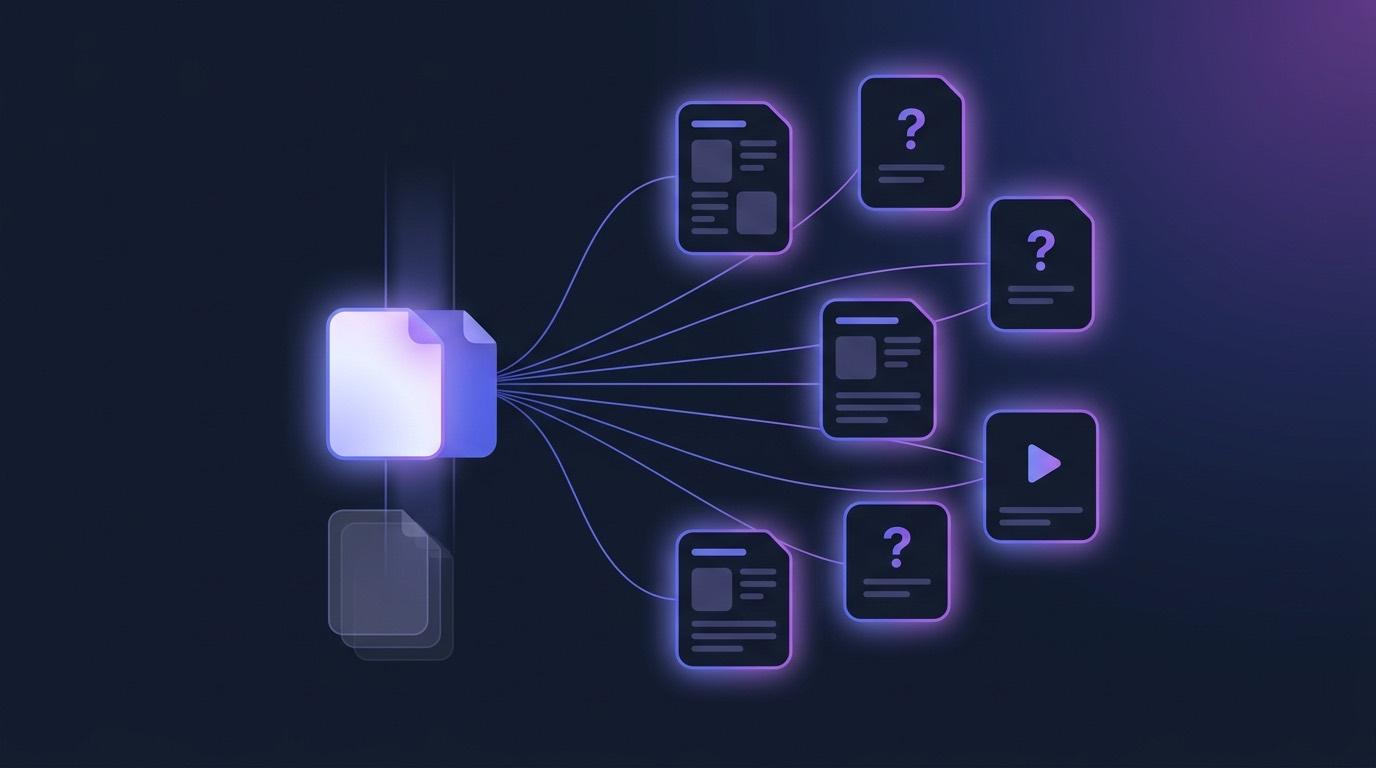
Somewhere in your course there is a file with a shelf life. The safety induction video that gets re-shot every year. The org chart that changes when the department reorganises. The price table, the regulation summary, the diagram with last year's logo on it. None of these are hard to update on their own — the problem is that you used them in fourteen places and can only remember four.
The usual fix is to upload the new file and then go hunting: open every lesson, every question, every attachment, and swap the old one out. It is slow, and worse, it is the kind of task where almost finished looks exactly like finished. The stale copy you missed sits in a final exam until a student asks about it.
A Media Library turns that around. Files live in one place, and your lessons, questions and activities only point at them. Replace the file in the Library and it changes everywhere it is used — without editing anything, and without re-saving a single lesson.
The File That Changes Every Year
This is not an exotic requirement. It is the normal condition of any course that survives more than one intake. Compliance and safety training re-shoot footage on a schedule. Vocational programmes update equipment photos when the equipment changes. University courses swap in the current year's reading list, the current dataset, the current version of the standard. Anything with a date on it eventually has the wrong date on it.
What makes it painful is not the update itself but the fan-out. One file, used in a lesson page, embedded in two questions, attached to an activity, referenced in a study guide. Five edits for one change, and no list telling you it was five rather than four.
Why Doesn't Re-Uploading the File Work?
When content stores its own copy of a file, every use is an independent thing that has to be maintained independently. Upload the new video and you have not replaced the old one — you have added a second one, and now both exist. The lessons you remember to edit point at the new file. The ones you forget still point at the old, which is still there, still playing, still wrong.
Deleting the old file instead does not help either: now the places you forgot are broken rather than stale, which is easier to notice but no less work to fix. Neither version of the problem is really about files. It is about there being no single answer to the question where is this used?
How Does a Media Library Fix It?
The Library keeps a file's identity separate from the file itself. Every file has a Permanent link, and that link is what your content stores — never the file's bytes, never a copy. Swap what sits behind the link and every lesson, question and activity holding it follows immediately. Nothing is rewritten, and nothing needs re-saving.
It also means renaming is safe. Click a file's name in the Library, type a new one, press Enter — the Permanent link does not move, so nothing pointing at the file breaks and nothing has to be confirmed. From then on a download saves under the new name, while anything already attached to an activity keeps the name it was given there.
Open a file in the Library and the panel shows a preview, its Permanent link, its Versions, and Used in — the list of every place that points at it. That last one is the answer to the question that made this hard in the first place.
How Do I Know Where a File Is Used?
Replacing a file asks you to confirm first, and the confirmation lists the places by name rather than showing a count. That is deliberate. "This file is used in 6 places" tells you nothing you can act on. Seeing that one of those places is a final exam is the difference between a routine swap and a phone call to the assessment lead.
The usage list is built as content is saved, so an edit made moments ago can take a little while to appear. If you have just embedded a file somewhere, give it a beat before trusting the list to be complete.
The same confirmation appears when you delete. If a file is still in use you are shown where, and deleting anyway takes a second confirmation — because deleting only removes the file from the Library, while everything still pointing at it stops working immediately. When a file is in use, replacing it is almost always what you actually want.
Can I Roll Back a Replacement?
Yes. Replacing keeps the old version rather than overwriting it, so the file carries a version history. Pick an older version and choose Make current and it goes back — through the same confirmation, naming the same places.
When you replace a file you can add an optional Note — "2027 re-shoot", "corrected figure 4", "new branding" — and it shows against that version in the list. Six months later, when someone asks why the diagram changed, the answer is in the file rather than in somebody's memory.
How Do Files Get Into the Library?
Nothing about this requires you to go to a file manager first. Uploading inside an editor puts the file in the Library for you, so the Library fills up as a side effect of normal work:
- In a text editor, Insert from Library adds a link to a file you already have — any type, pictures included. Use it when you want something people click.
- Still in a text editor, Insert Image puts a picture in the page and Insert video puts a player in the page. Both can upload or pick from the Library.
- In the question editor, Add image appears wherever you set a picture — the question image, a drag-and-drop background, or the picture on a drag label.
- The Attachments & media activity's Add files button opens the Library to pick or upload.
- Under a lesson, Attach existing resource → Media lists your files under Files in your Library; clicking one adds it to the lesson.
The picker itself has no tabs. There is one list of files, with Upload and Add by link beside the search box, and you can drop a file straight onto the list. Narrow it with the type filter — All types, Image, Video, Document, Audio, Other — or just search.
Can I Add a Video Hosted Somewhere Else?
Add by link brings in something hosted elsewhere — an unlisted YouTube or Vimeo video, say — and it counts as a file like any other. It gets a permanent link, it appears in the picker, and it shows up in Used in.
That combination is more useful than it first looks. Add a video by link now, while the hosted copy is still being produced, and replace it with the real file later — nothing that points at it has to change. One caveat worth knowing: pasting a web address into the video button adds a link rather than an in-page player, because only Library files can play inside the page.
What Do Learners See?
Video and audio play right in the activity rather than sending learners off to another tab, and PDFs display inline instead of downloading first. If a learner's browser cannot play a particular video, its name appears in place of the player as a download link, and the file saves under its real name rather than a string of characters.
What About Content Made Before This?
It keeps working exactly as it did. Files added before the Library existed render the same way they always have, and nothing has to be migrated for older content to behave. The Library is additive: new uploads get permanent links and version history, and old content is left alone rather than rewritten underneath you.
Getting Started Free
EduGears AI connects to Moodle or Canvas over LTI 1.3 — an administrator registers it once, in about three minutes, with no intrusive plugins. The Media Library is part of the authoring surface rather than a separate product, so it is there on every plan alongside the AI tools.
Connect your LMS and try it on a real course — free to start, no card.
Set up EduGears AIFrequently Asked Questions
If I replace a file, do I have to re-save the lessons that use it?
No. Your content stores the file's permanent link rather than a copy of the file, so replacing what sits behind that link reaches every lesson, question and activity at once. Nothing is rewritten and nothing needs re-saving.
How do I know where a file is used before I change it?
Open the file in the Media Library and the panel shows Used in — every place that points at it. The same list appears in the confirmation when you replace or delete, named place by place rather than as a count, so you can see if a final exam is one of them. The list is built as content is saved, so a very recent edit may take a moment to show up.
Can I undo a replacement?
Yes. Old versions are kept rather than overwritten. Pick an earlier version and choose Make current to put it back, through the same confirmation. You can add a Note when you replace a file — "2027 re-shoot", say — and it shows against that version in the history.
Does renaming a file break anything that uses it?
No. The permanent link does not move when you rename, so nothing pointing at the file breaks and nothing has to be confirmed. Downloads save under the new name from then on, while anything already attached to an activity keeps the name it was given there.
Can I add a video that is hosted somewhere else?
Yes. Add by link brings in an unlisted YouTube or Vimeo video and treats it as a file like any other, including its permanent link and usage list. You can replace it with a hosted file later without changing anything that points at it. Note that only Library files can play inside the page — a pasted web address becomes a link rather than an in-page player.
What happens to content I made before the Media Library existed?
It keeps working exactly as it did. Nothing has to be migrated for older content to render, and older files are not rewritten underneath you.
Try EduGears AI Free
Setup in 3 minutes via LTI 1.3. No credit card required. All 26 AI tools included on the free tier.
Get Started Free →