How to Grade Handwritten Work with AI — Without Retyping a Single Page
It is Sunday evening, and there are twenty-eight exercise books on the kitchen table. Each one has a page of worked solutions, a labelled diagram and a paragraph explaining the method. You know the rubric by heart: method shown, correct units, diagram labelled, conclusion stated. By the twelfth book you are writing "show your working" in the margin for the fourth time, and you still have the other class's lab write-ups in a bag by the door.
Most of the AI marking you read about assumes the work was typed into a box. Yours wasn't. This post is about the other kind: how to grade handwritten work with AI in EduGears AI, without anyone retyping a page, and without giving up the final say on a single mark.
Twenty-eight exercise books on the kitchen table
The cost of handwritten marking isn't the reading. It is the repetition: applying the same four criteria to the same kinds of mistakes, writing the same comment in slightly different words, then keying every score into the gradebook by hand. By the time the books go back, the lesson they were about is a week old.
What would actually help is a first pass. Something that reads each page against your rubric, proposes a level for every criterion with a short reason, and leaves you to agree, adjust and send. That is the job the AI Grading tool does.
Why handwritten work hasn't gone away
Handwriting stays in classrooms for good reasons. Maths and science teachers want to see the working, not just the answer. Younger students write before they type well. Lab notebooks, field sketches and annotated diagrams are easier with a pen. And when students will sit a written exam, practising under the same conditions matters. The marking should meet the work where it already is: on paper.
How to grade handwritten work with AI: photograph, scan, pick the student
The AI Grading tool (Grading in the EduGears AI menu) works from photos and scans you take yourself. Students don't need to upload anything, and nothing changes about how they write the work. Here is the flow:
- Create a rubric tagged Student Assessment, or draft one with AI and edit it before you save. AI rubric generation gives you a draft to review, never a finished rubric.
- Choose New activity. Give it a title, pick the rubric, set the Allowed media to Image and Document, and set a Max score.
- Leave Report grade to LMS gradebook on. Then pick a student from your LMS roster (or enter a name manually).
- Under Capture response, choose a photo of the page or a scanned PDF, then choose Submit for AI grading.
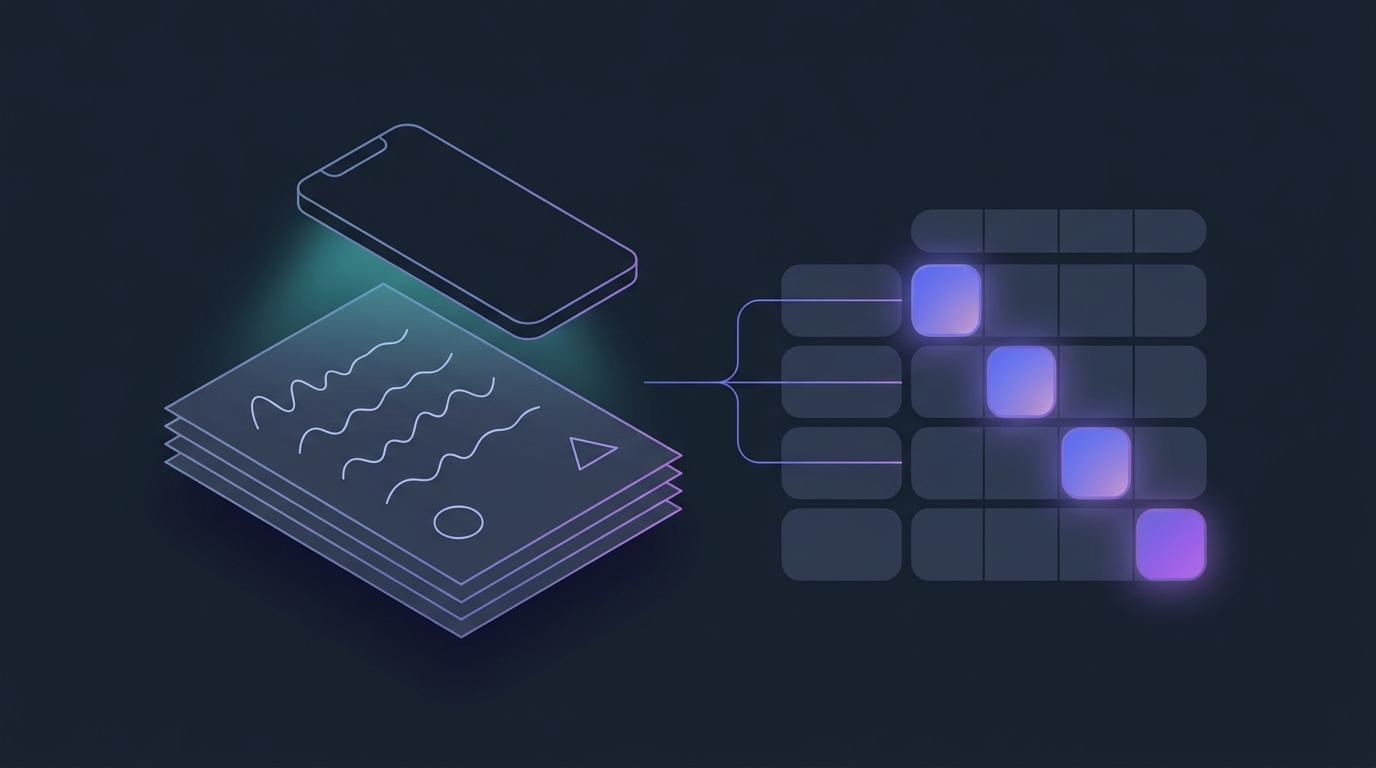
The AI reads the page image directly: the handwriting, the working and the diagram. You don't need to type anything up first or run it through a separate text-recognition step. The grade usually comes back in seconds, and you move on to the next book.
What the AI gives back
For every criterion on your rubric, the AI picks one level, awards the matching points and writes a short comment on why. Alongside the criterion scores you get:
- Overall feedback: a short draft you can edit into the note the student receives.
- Strengths: what the work does well.
- Areas to improve: the next thing to work on.
- The reason behind the score: a justification for the total, so you can check its reasoning against yours.
That last part matters most. A score with its reason is something you can disagree with in seconds, and the disagreement shows you where your rubric needs to be clearer.
You review it, then you post it
No score reaches the gradebook until you approve it. Each AI grade waits as "AI grade ready" until you open it. You can change the points or the comment on any criterion, write the Overall feedback (sent to gradebook), and then choose Save & post to gradebook. Anything you changed is flagged "Teacher edited", so it is always clear which marks were yours.
Each activity gets its own gradebook column in Moodle, Canvas, Blackboard or Brightspace, so the score lands where you already look. If a name isn't on your LMS roster, the grade is stored in EduGears AI rather than lost. The review-and-approve step is the same one used across EduGears AI grading.
The AI does the first pass; you make the call. Every AI score is a draft until you post it, and you can change any criterion before you do.
A whole stack at once
Not every pile needs to go to the gradebook. For a mock paper, a practice task or a quick check-in, turn Report grade to LMS gradebook off. The activity becomes ad-hoc: there is no student picker, you upload several scans at once, and they are all graded against the same rubric in one batch. Nothing is posted anywhere. You get criterion-by-criterion feedback on every page to talk through with the class.
Getting good results from photos and scans
The AI can only mark what it can see. A few habits make a real difference:
- One student per submission. If a piece of work runs to several pages, scan them into a single PDF so the AI reads the whole thing together.
- Flat, bright and square. Photograph the page flat, in even light, and fill the frame. Faint pencil and shadowed corners are the most common reason a mark comes back wrong.
- Write criteria the page can show. "Working shown at each step" and "Axes labelled with units" can be seen on paper. "Worked independently" can't, so mark that one yourself.
- Fix the rubric before you start. The rubric and max score lock once the activity is created, so earlier students are never rescaled. If you need different criteria, create a new activity.
And read the page when the score surprises you. Handwriting that is hard for you to read may be hard for the AI too. That is exactly why every grade waits for you.
What it does, and what it doesn't
- It marks scanned or photographed handwritten work against your rubric, in the AI Grading tool, from files you add.
- Students don't submit here themselves. The teacher captures or uploads the work. If you want students to hand in their own photos of handwritten work, a project takes image and PDF files alongside a write-up, also graded against a rubric.
- It isn't part of quizzes. Quiz answers are typed. Handwriting is graded as an uploaded image or document, not inside a quiz.
- It doesn't keep the files unless you ask. Unless an administrator has turned on file retention, uploaded files are discarded after grading. Only the scores and feedback are kept.
If you're wondering whether AI marking is fair to the students on the other end of it, our look at the evidence is a good place to start. The short version: a first pass you can see and correct is a very different thing from a score nobody checks.
Where to start
Pick one set of books you'd mark this week anyway. Write (or draft) a four-criterion rubric, create a Grading activity, and photograph the first five. Compare the AI's levels and reasons with what you would have written. Within one set, you'll know which criteria it handles well and which ones you'd rather keep for yourself.
See how AI marking fits into the whole assessment flow, from building the quiz to the gradebook.
AI grading and assessmentNot in your LMS yet? An administrator can register EduGears AI in Moodle or Canvas in about three minutes.
Open the setup guideCan AI grade handwritten work?
Yes. In EduGears AI's AI Grading tool, you photograph or scan a student's handwritten pages and upload them as an image or document. The AI marks them against your rubric, criterion by criterion, and you review and approve the grade before it reaches the gradebook.
Do students have to type up their work first?
No. The AI reads the photo or scan directly, including the handwriting, the working and any diagrams. Nobody retypes anything.
Does the score go straight to the gradebook?
No. Each AI grade waits until you open it, adjust anything you disagree with, and choose Save & post to gradebook. Nothing reaches the gradebook automatically from the AI Grading tool.
How do I grade work that runs to several pages?
Scan the pages into a single PDF and upload it as one submission for that student. The AI then reads the whole piece together.
Can I grade a whole class's practice papers without touching the gradebook?
Yes. Turn off Report grade to LMS gradebook and the activity becomes ad-hoc: upload several scans at once and they are graded against the same rubric as a batch, with nothing posted to the gradebook.
What happens to the photos after grading?
Unless an administrator has turned on file retention, uploaded files are discarded after grading and only the scores and feedback are kept.
Try EduGears AI Free
Setup in 3 minutes via LTI 1.3. No credit card required. All 32 AI tools included on the free tier.
Get Started Free →