From Your Notes to a Moodle or Canvas Quiz: Generate, Check and Import, Free
It's Friday evening and Monday's quiz isn't written. You know the topic and you have the slides. What you don't have is two hours for the part nobody sees: three wrong answers per question that a student who half-understood would actually pick, an answer key you'd stake your reputation on, and a line of feedback for every option. Then comes the second job: typing it all into Moodle or Canvas, one field at a time.
The slow part isn't the questions
Most teachers can write a question stem in a minute. The hours go into everything around it. Good distractors are hard, because each one should be a real misconception, not a joke option. Answer keys go wrong quietly: a unit slips in a calculation, two options are both defensible, and you find out when a student does. And re-entering a finished quiz into an LMS form is pure data entry, where a tick lands on the wrong option or a formula turns into plain text.
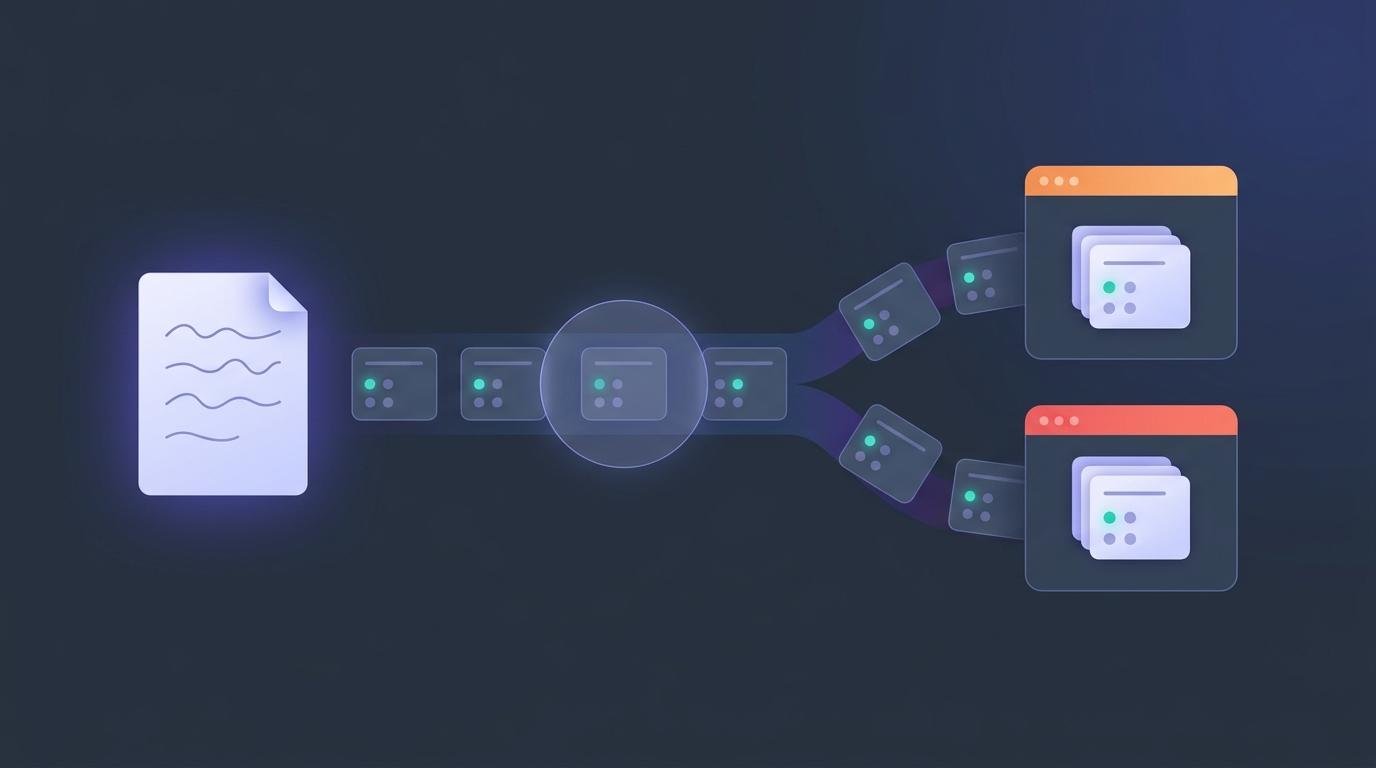
Our free AI quiz generator takes on those three jobs. It needs no signup and no LMS setup. You give it a source, it writes the quiz and checks the key, and you download a file your LMS imports.
Make the quiz
- Choose a source: a topic ("Photosynthesis for grade 8"), up to 15,000 characters of your own notes, or a PDF of up to 2 MB and 25 pages. With notes or a PDF, the questions are written from your material.
- Set the quiz: class level, 5 to 20 questions, difficulty, Bloom's level, and any mix of seven question types: multiple choice, select all, true/false, short answer, numeric, matching and essay.
- Pick the language. Quizzes can be written in 13 languages, including Spanish, French, Arabic, Hindi and Chinese.
- Select Generate quiz. Questions start appearing within seconds, each with an explanation, a hint and feedback on every option.
Math and chemistry work too. Equations and chemical formulas display properly on screen and in print, and they are written into the export files as plain TeX, so they still render after import.
Check the answer key
This is a step many free generators don't do. After each question is written, a separate AI pass answers it without seeing the key. If the two answers agree, the card shows Key checked. If they disagree, a stronger model reviews the question. If it also finds a problem, the card shows Review with a note on what looks wrong. You can fix it with one click or keep it as written. Essays are not checked this way, because there is no single right answer to compare.
Then read the quiz as you would a colleague's. Edit any wording, option, accepted answer, tolerance or matching pair. Reorder or delete questions, add one more, or ask the AI to rewrite a single question ("make it harder", "use a real-world example"). The check catches most errors, but you are still the teacher.
We don't store your quiz. It stays in your browser until you clear it, and an uploaded PDF is deleted when you finish or leave the page. Please don't paste students' names or work into the tool.
Import into Moodle
Download Moodle XML (or GIFT). You don't need admin access: a teacher can import into their own course.
- Open your course and go to More → Question bank.
- Choose Import, then select Moodle XML format (or GIFT format).
- Upload the file, select Import, then Continue.
- Open your quiz, choose Add → from question bank, and pick the new questions.
The questions land in a question bank category named after your quiz title, so they're easy to find. Pick Moodle XML when you can: it keeps the most detail, such as units on numeric answers and grading notes on essays. GIFT is plain text, handy if you want to read or tweak the file before importing. We tested both formats with all seven question types on Moodle 4.5; on other versions the menu names can differ slightly.
Import into Canvas
Download the Canvas QTI package. It's a .zip file: upload it as it is, without unzipping it.
- Open your course and go to Settings → Import Course Content.
- For Content Type, choose QTI .zip file, then choose the file you downloaded.
- Select Import and wait for the job to show as completed.
- Open Quizzes. Your quiz is there with its questions, answers and feedback, ready for you to review and publish.
We tested the package with all seven question types in Canvas Classic Quizzes. One Canvas limit to know: in matching questions, math in the answer drop-downs shows as raw TeX, because Canvas doesn't render math inside drop-down menus. Keep matching answers as plain words and you won't see it.
What arrives in your course
Each question arrives as the LMS's own question type, not as text to fix up afterwards:
| In the generator | In Moodle | In Canvas |
|---|---|---|
| Multiple choice | Multiple choice | Multiple choice |
| Select all | Multiple choice, several answers, with partial credit | Multiple answers |
| True/false | True/false | True/false |
| Short answer | Short answer, with every accepted answer | Fill in the blank |
| Numeric | Numerical, with tolerance and unit | Numerical answer |
| Matching | Matching | Matching |
| Essay | Essay, with grading notes | Essay (marked by you) |
Option feedback and explanations come with every question. Prefer paper? Print a student copy with name and date lines, a shuffled Version B, and an answer key with explanations. You can also save the quiz as a .json file and open it in the generator again next term.
After the import
Multiple choice, select all, true/false, numeric and matching questions mark themselves in Moodle and Canvas. Short answers are matched against the accepted answers you listed, so a near-miss spelling may still need your eye. Essays wait for you, and that is where the Friday-evening hours come back on Tuesday.
If you'd rather not do that marking either, EduGears AI runs inside your Moodle or Canvas over LTI 1.3. Its AI Grading marks short and written answers against your rubric, with feedback for each student, and no score reaches the gradebook until you approve it. There is a free plan, AI included.
Have a quiz to write this week?
Open the free quiz generatorFrequently asked questions
Is the quiz generator really free?
Yes. There is no signup, no trial and no watermark on the questions. The Moodle and Canvas files carry a one-line comment saying they were made with EduGears AI.
Do I need admin rights to import into Moodle or Canvas?
No. Teachers who can edit their course can import into it: Moodle through the course question bank, Canvas through Settings → Import Course Content.
Should I choose Moodle XML or GIFT?
Moodle XML keeps the most detail, including units on numeric answers and grading notes on essays. GIFT is a plain-text format that is easy to read and edit before importing. Both import all seven question types.
Does the Canvas file work with New Quizzes?
We have tested the QTI package with Canvas Classic Quizzes, where all seven question types import with their answers and feedback. We haven't tested New Quizzes yet.
Can I make a quiz from a PDF of my own notes?
Yes. Upload a PDF of up to 2 MB and 25 pages, or paste up to 15,000 characters of text, and the questions are written from that material. The PDF is deleted when you finish or leave the page.
Can I edit the questions after importing them?
Yes. They are ordinary Moodle or Canvas questions, so you can edit them in your LMS like any question you wrote yourself.
Try EduGears AI Free
Setup in 3 minutes via LTI 1.3. No credit card required. All 32 AI tools included on the free tier.
Get Started Free →