Mark the Working, Not Just the Answer: Photo and File Answers in Moodle and Canvas Quizzes
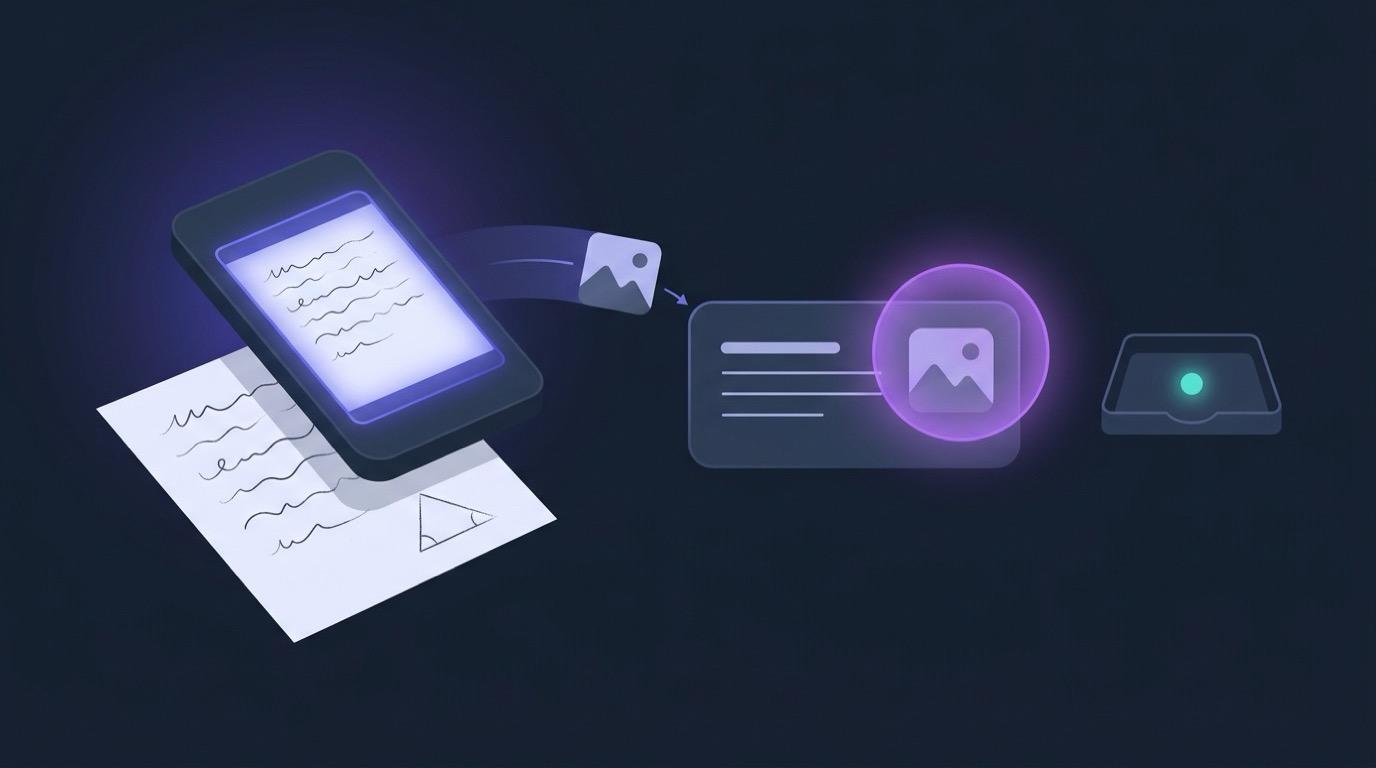
A Year 10 learner works through a simultaneous-equations question on paper: substitution, rearranging, a neat line of working for each step. On the last line they drop a minus sign, type "x = 3" into the quiz, and get zero. Their method was worth four of the five marks. Nobody will ever see it, because the quiz only had a box for the answer.
Maths, physics and chemistry teachers know this well, and so does anyone who sets a labelled diagram, a table of results or a design sketch. Some answers don't fit in a text box. EduGears AI quizzes inside Moodle and Canvas now take photo and file answers: a learner attaches their working to an essay answer, the AI marks what they sent, and you approve the mark before it reaches the gradebook.
The working the text box never sees
The usual workarounds all cost someone time. Learners type their working out line by line, which is slow and drops the diagrams. They email photos separately, which leaves you matching files to names. Or the question is marked on the final answer alone, and method marks disappear.
What helps is letting the work arrive the way it was done, on paper or in a document, attached to the answer it belongs to. Then a first pass that reads it, and a teacher who has the final word.
Turn on file answers for one question
File answers are set per question, so you choose where they make sense:
- In the quiz editor, open an Essay question.
- Turn on Students can attach files and set how many, up to 10 per answer (it starts at 5): photos, PDF, Word (.docx) or text files, up to 5 MB each.
- Choose how the quiz is marked. With AI marks against the memorandum, the AI marks the attached work against the question's memo. With a rubric attached, it grades the attempt against the rubric instead.
It works in quizzes. Practice sets and exams don't take file answers.
What the learner does
Under the question, the learner sees Attach files, and on a phone or tablet also Take photo. They can type an answer, attach their working, or both. There's nothing new to install and no separate upload page: the files go with the attempt, from inside the Moodle or Canvas course they're already in.
Tip for learners: photograph the page flat, in even light, and fill the frame. Faint pencil and shadowed corners are the most common reason the AI can't read a page, and then it leaves the answer for the teacher.
Seeing the files in Submissions
In Submissions, an answer with files shows how many are attached, such as 2 files attached, and an attempt with a file answer still to mark shows Has files to mark on its row. Expand the attempt to see the files under the answer: photos open full size, PDFs open in a new tab, and Word and text files download (a text file also shows a preview).
One thing to know: the Moodle or Canvas gradebook, including Canvas SpeedGrader, doesn't show the files. The comment sent with the score says how many are attached, so open the attempt in EduGears AI to see them.
How the AI marks attached work
On a quiz set to AI marks against the memorandum, the AI reads attached photos and PDFs, and the text of Word and text files, together with anything the learner typed. It marks the answer against your memo and gives partial credit for the part of it the learner got right. Put the method steps in the Model Answer, and the working counts, not just the last line.
Each answer it marks shows two things only you can see:
- What the AI read: its reading of the files, so you can check it saw the working the way you do.
- Why this mark: its reasoning for the mark it gave against your memo.
With a rubric attached, the AI grades the whole attempt against the rubric instead, reading typed text and files together, and gives a level for every criterion with Evidence for each criterion. If it can't read a file clearly, or the files are too large, it doesn't guess. It says why and leaves the answer, or the whole rubric grade, for you. AI marking of attached files uses AI credits.
Nothing reaches the gradebook until you approve it
Every mark the AI gives from attached files, and every grade it gives with a rubric, waits for your approval, even if Hold AI marks for my approval is off for that quiz. Until you approve, the learner and the gradebook see nothing of those marks.
Read the files against What the AI read and Why this mark. If you disagree, choose Override (or Re-grade for a rubric grade). When it's right, choose Approve & post to gradebook: the marks go to the learner and the score goes to Moodle or Canvas. If the quiz's AI feedback summary is on, the summary is written from the approved marks and sent with it.
The AI does the first read; you make the call. A mark you can see the reasons for is a mark you can check in seconds, and correct when it's wrong.
Using your own AI key
Institutions that run EduGears AI on their own AI provider account can use file answers too, with one limit. AI marking of attached files against the memo runs on your own key only when its model is Claude Haiku 5.5 or Gemini 3.5 Flash, and AI rubric grading of attempts with files only when it is Claude Haiku 5.5. With any other model, learners can still attach files, and those answers are left for the teacher to mark. Our guide to AI providers explains how your own key and our managed AI split the work.
What it does, and what it doesn't
- It works on Essay questions in quizzes, one question at a time, when you turn it on. Practice sets and exams don't take file answers.
- The AI reads photos, PDFs and the text of Word and text files. A Word file that is mostly pictures, a PDF that won't open, or files that are too large are left for you, with the reason shown.
- The question needs a Model Answer or Solution, or the quiz a rubric, for the AI to mark it. Without one, the answer waits for you.
- Every AI mark from files waits for you. No setting sends them straight to the gradebook; a platform can only turn AI file marking off, and then you mark those answers yourself.
- Teacher previews and Canvas Student View attempts aren't marked from files and aren't listed in Submissions, so test it with a real learner account.
If you'd rather photograph a stack of exercise books yourself than have learners upload, the AI Grading tool does that: see how to grade handwritten work with AI. And if you're weighing whether AI marking is fair to the learner on the other end, our look at the evidence is a good place to start.
See how file answers fit into the whole assessment flow, from building the quiz to the gradebook.
Explore assessment and gradingFrequently asked questions
Can students upload a photo of their handwritten work in a Moodle or Canvas quiz?
Yes, in EduGears AI quizzes. Turn on Students can attach files on an Essay question, and learners see Attach files under it, plus Take photo on a phone or tablet. You choose how many files per answer, up to 10; each can be a photo, PDF, Word (.docx) or text file up to 5 MB.
Does the AI mark the attached files?
Yes, on a quiz set to AI marks against the memorandum, or with a rubric attached. The AI reads photos and PDFs, and the text of Word and text files, along with anything typed. It shows you What the AI read and Why this mark, and every mark it gives from files waits for your approval.
Do the AI marks go straight to the gradebook?
No. Every mark the AI gives from attached files, and every AI rubric grade, waits in Submissions until you choose Approve & post to gradebook, even if Hold AI marks for my approval is off.
Can I see the files in the Moodle or Canvas gradebook?
No. The gradebook, including Canvas SpeedGrader, shows the score and a comment saying how many files are attached. Open the attempt in Submissions in EduGears AI to see the files.
What happens if a photo is blurry?
The AI doesn't guess. When it can't read a file clearly, it says so on the answer and leaves it for you to mark.
Does it work with our own AI key?
Yes, with the right model. AI marking of attached files against the memo runs on your own key with Claude Haiku 5.5 or Gemini 3.5 Flash, and AI rubric grading of attempts with files with Claude Haiku 5.5. With other models, learners can still attach files and the teacher marks those answers.
Try EduGears AI Free
Setup in 3 minutes via LTI 1.3. No credit card required. All 32 AI tools included on the free tier.
Get Started Free →