An AI Tutor That Sticks to Your Course — and Tells You What It Couldn't Answer
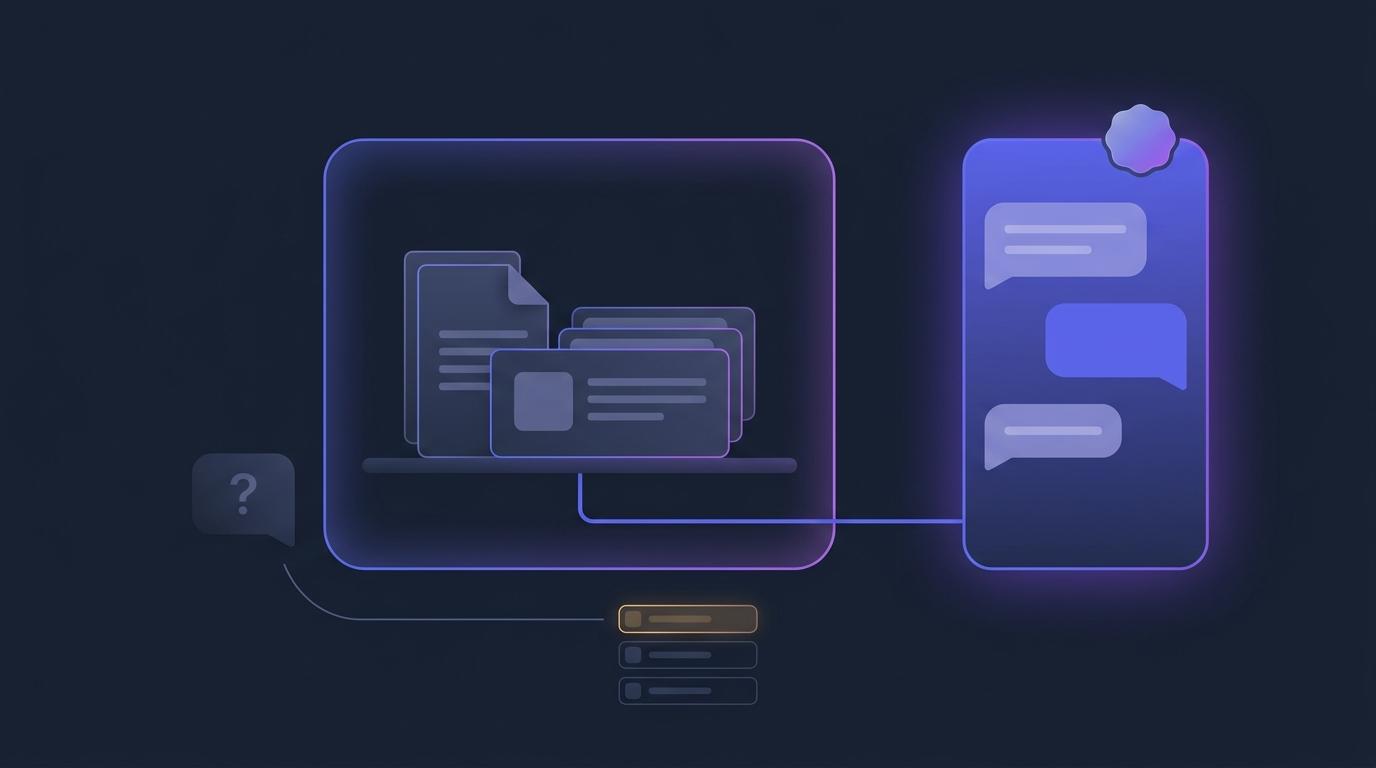
Somewhere in your course tonight, a student is stuck on a concept you covered in week three. They could reread the lesson. Instead they open a general-purpose chatbot in another tab, type the question, and get a confident answer that uses different terminology, a different method and, occasionally, a different set of facts from the ones you taught. They copy the method into their assignment. You find out when you mark it — if you find out at all.
That is the real cost of an AI tutor that answers from everywhere: not that it is sometimes wrong, but that it quietly replaces your course as the reference point, and you never see the question that was asked. The latest release of the EduGears AI tutor inside Moodle, Canvas and other LTI 1.3 platforms is built around the opposite idea. It answers from your course. It says so when a question falls outside it. And it hands you the questions it could not answer, ranked, so you can decide what the course is missing.
The question that goes to the internet instead
Instructors rarely object to students asking for help. What worries them is where the help comes from. A tutor that draws on the whole internet will happily explain a statistics test your syllabus never uses, cite a clinical guideline your programme has replaced, or walk through a coding pattern your department teaches students to avoid. Each answer might be defensible in isolation. Taken together, they pull the course in directions its author never chose.
There is a second, quieter loss. Every question a student takes elsewhere is a signal that disappears. If six students in a cohort ask the same thing about the same module, that is the most useful feedback the course will get all term — and in an open chatbot, nobody who could act on it ever sees it.
Answers from your course, by default
By default, the AI tutor now answers from three sources and nothing else:
- The documents you uploaded to Curriculum Intelligence — the syllabus, readings, handbooks and reference material your course is built on.
- The course's own lessons and resources, including content you generated with AI and then kept.
- The in-app help, so a question about how to find or use something in the tool is answered from the product's own documentation.
When a question falls outside all three, the student gets a polite decline rather than an improvised answer:
“That's outside this course's materials — ask your instructor if you think it should be covered.”
The wording matters. It does not tell the student they asked a bad question. It points them back to you, and it treats the gap as something that might belong in the course. And because every decline is recorded, the question does not vanish — it becomes something you can see, which is where the new reports come in.
Honest about being AI, careful with graded work
Grounding reduces the chance of a wrong answer; it does not remove it. So the tutor is now explicit about what it is. Every tutor surface carries an always-visible badge — AI tutor — answers are AI-generated — and a student's first conversation opens with a notice that its answers can be wrong, with a pointer back to the course materials and to you. Students always know what they are talking to.
On graded work, the tutor scaffolds rather than completes: it helps a student work toward an answer instead of doing the work for them. That sits alongside the assessment safety the tutor already had — it never reveals quiz questions or an answer key before or during an attempt.
Three settings, course by course
A tutor that is right for a first-year biology course may be wrong for a postgraduate seminar, so the behaviour is now yours to set, per course. Each course's Curriculum Intelligence page has a new AI Tutor settings section:
| Setting | Options | What it changes |
|---|---|---|
| Grounding | Course materials only (strict) — the default · Relaxed | Strict answers only from your course. Relaxed still prefers your course materials but may also answer from general knowledge. |
| Guidance style | Socratic · Scaffolded · Direct · Learner's choice | How the tutor helps. When you pick a style, students see “Style set by your instructor: Socratic” (or whichever you chose) in place of their own style picker. Learner's choice lets them keep choosing. |
| Topic boundaries | Optional free text | Describe what the tutor should stay within. Anything outside it is treated as out of scope and declined. |
Topic boundaries are useful when your uploaded materials are broader than the course itself — a full textbook for a course that uses four chapters of it, say. A line such as “Stay within cell structure and membrane transport” narrows the tutor to what you actually teach this term.
Starting a new term? When you launch into an empty course, the Dashboard offers “Copy setup from an existing course”, and the copy brings your Curriculum Intelligence documents and these AI Tutor settings along with the modules and content — student work is never copied.
What your students asked — and what they didn't get
Two new reports sit on the Reports page, available in all 16 interface languages:
- Tutor Questions lists every question your students asked the tutor, answered or declined, with filters and a chart. It shows you what the class is actually wondering about, including the questions nobody raises a hand to ask.
- Unanswered Tutor Questions takes the declined questions, groups similar ones together and ranks them by how often students asked. The top of that list is your course's content gaps, in order, ready to fill.
The second report changes what a decline is for. Instead of a dead end, it is a data point: if a cluster of students keep asking about a topic the materials do not cover, you can add a document, write a lesson, or decide it is genuinely out of scope and say so in class. You can also ask Cog, the EduGears AI assistant, about either report in plain words.
Declines also feed early intervention. The new At-risk students card on your Dashboard flags learners who have gone inactive, are scoring low, are behind pace — or are having most of their tutor questions declined — and shows the reason each one was flagged.
Find the gaps before students do
Reports tell you after the fact. The new Content coverage panel on Curriculum Intelligence tells you beforehand. Each module gets a badge — Covered, Thin or No coverage — worked out from your documents and lesson content, and the panel lists the questions students asked that went unanswered in the last 30 days.
An honest caveat, which the panel states too: the badges count material. They cannot tell you whether a document covers every topic in a module. What they do show reliably is where there is nothing — so you can add it before a student asks.
A Tutor Audit for platform owners
For the people who answer to a governance committee, each platform's page in the EduGears AI management portal has a new Tutor Audit tab. It records every question put to the tutor and its reply, every change to tutor settings, and Curriculum Intelligence document activity. You can filter it and export it as CSV — and the exports are recorded as well. Records are kept for 12 months.
That makes the tutor something you can review rather than something you have to take on trust: when someone asks what students were told, and under which settings, there is an answer.
Give your students an AI tutor that answers from your course — inside the Moodle or Canvas you already run, with every setting in your hands.
Get started freeIf you already run courses
This release changes courses that are already running. With it, existing courses switch to strict grounding, so a tutor that used to answer general questions may now decline some of them. If you prefer the previous behaviour for a course, set Grounding to Relaxed on that course's Curriculum Intelligence page. Either way, every decline is recorded, so the Unanswered Tutor Questions report will show you exactly what your students asked — which is the quickest way to decide whether strict is right for that course.
A practical order for a course you care about: open Content coverage and look for modules marked No coverage; add what you can; set a guidance style and, if the materials are broad, a topic boundary; then check Unanswered Tutor Questions after the first week of term.
FAQ
What does the AI tutor answer from?
By default, from the course itself: documents uploaded to Curriculum Intelligence, the course's lessons and resources (including AI-generated content), and the in-app help. A question outside those gets a polite decline that points the student back to their instructor.
Can I let the tutor use general knowledge as well?
Yes. Set Grounding to Relaxed on the course's Curriculum Intelligence page. The tutor still prefers your course materials but may also answer from general knowledge. Strict — course materials only — is the default.
Can I choose how the tutor guides students?
Yes. Guidance style can be Socratic, Scaffolded, Direct or Learner's choice. When you set a style, students see “Style set by your instructor” in place of their own picker; Learner's choice leaves the choice with them.
How do I see what students asked the tutor?
Two reports on the Reports page: Tutor Questions lists every question, answered or declined, with filters and a chart; Unanswered Tutor Questions groups the declined ones and ranks them by how often they were asked. You can also ask Cog about either report.
Will the tutor do a student's graded work for them?
No. On graded work it scaffolds rather than completes — it helps the student work toward an answer. It also never reveals quiz questions or an answer key before or during an attempt.
Do students know the answers come from AI?
Yes. Every tutor surface shows an always-visible “AI tutor — answers are AI-generated” badge, and a student's first conversation opens with a notice that answers can be wrong, pointing them back to the course materials and to their instructor.
Does this work in Canvas as well as Moodle?
Yes. The tutor is part of the EduGears AI LTI 1.3 integration, so it works inside Moodle, Canvas, Blackboard, Brightspace and other LTI 1.3 platforms.
Try EduGears AI Free
Setup in 3 minutes via LTI 1.3. No credit card required. All 26 AI tools included on the free tier.
Get Started Free →